Genova
Treaty Setup
Creating and Managing Treaty: A Step-by-Step Guide
This guide provides a comprehensive walkthrough of the process for creating and managing treaties within the system. Each step includes a screenshot to aid in navigation and understanding. Follow these instructions carefully to ensure accurate completion of each task.
Start url: http://localhost/vanguard-genova/cia/admin
Tab Name: GENOVA INSURANCE
Click on the link "Treaty Setup" from the dropdown list.
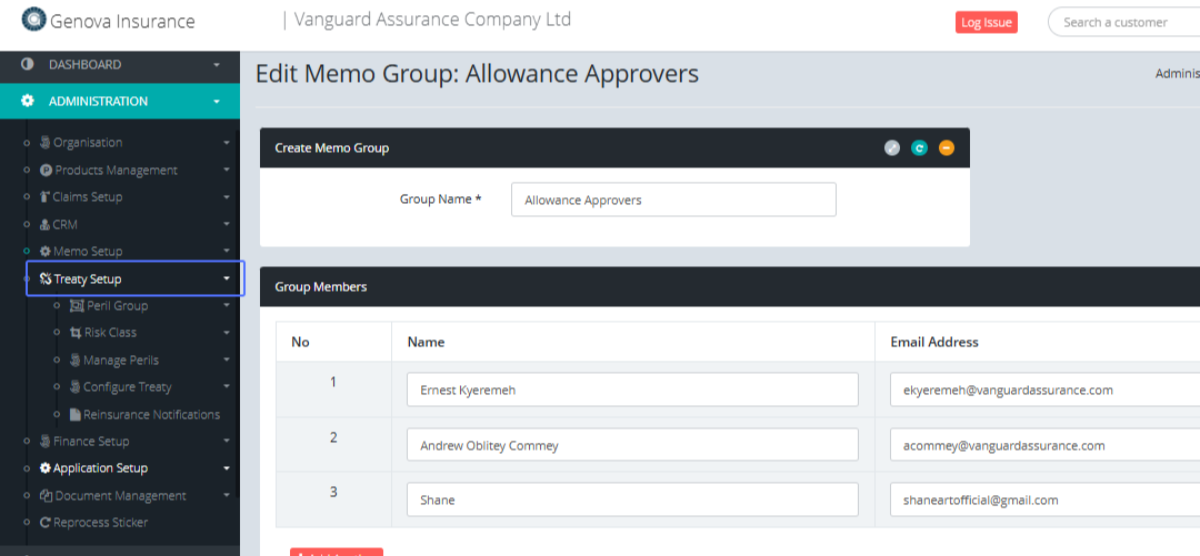
Click on the link "Peril Group" to see how to manage the peril group.
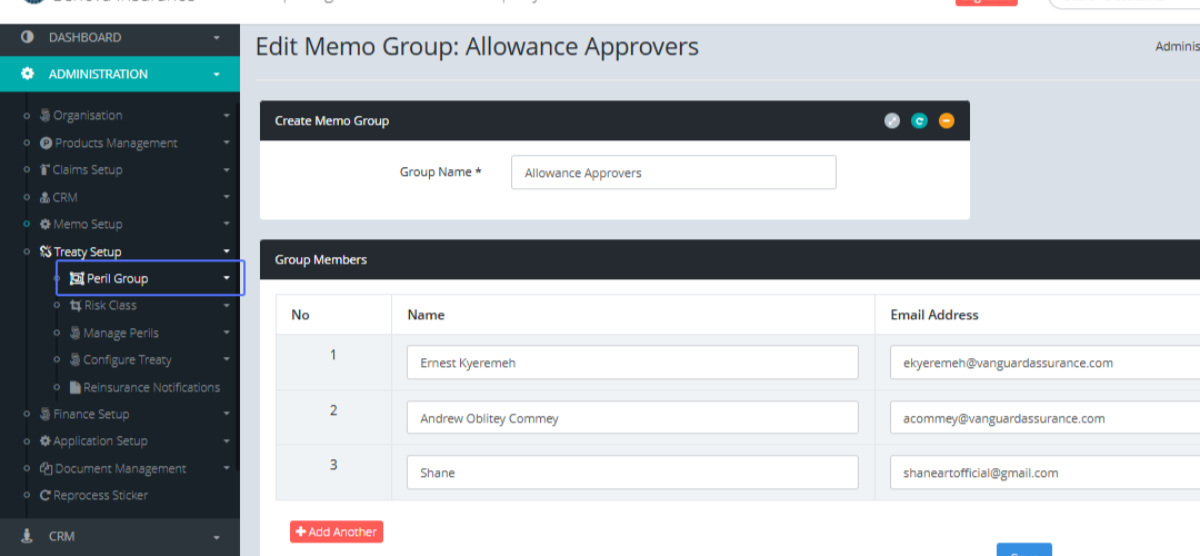
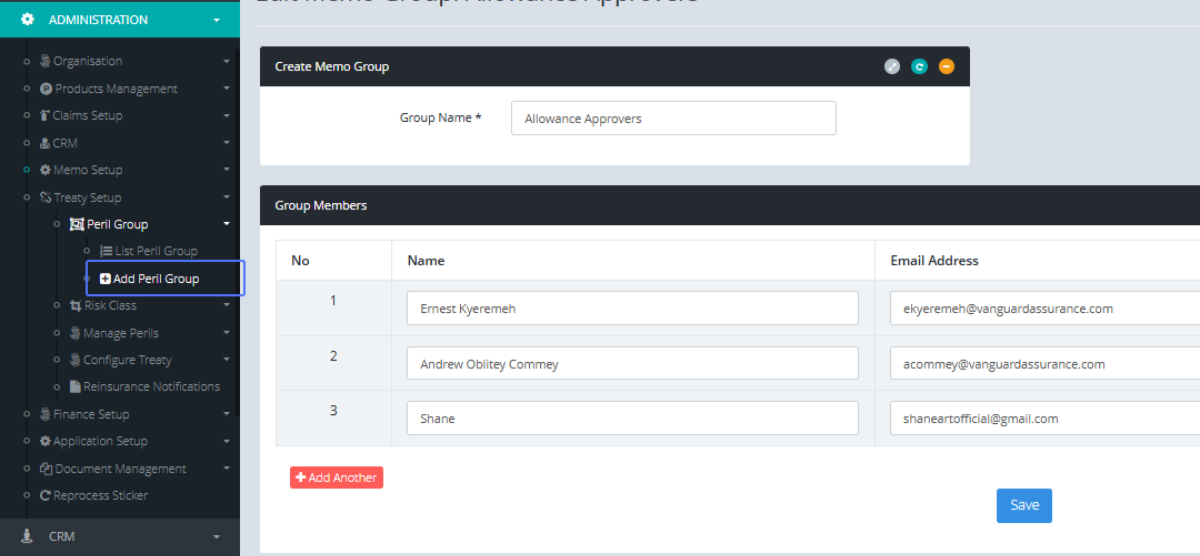
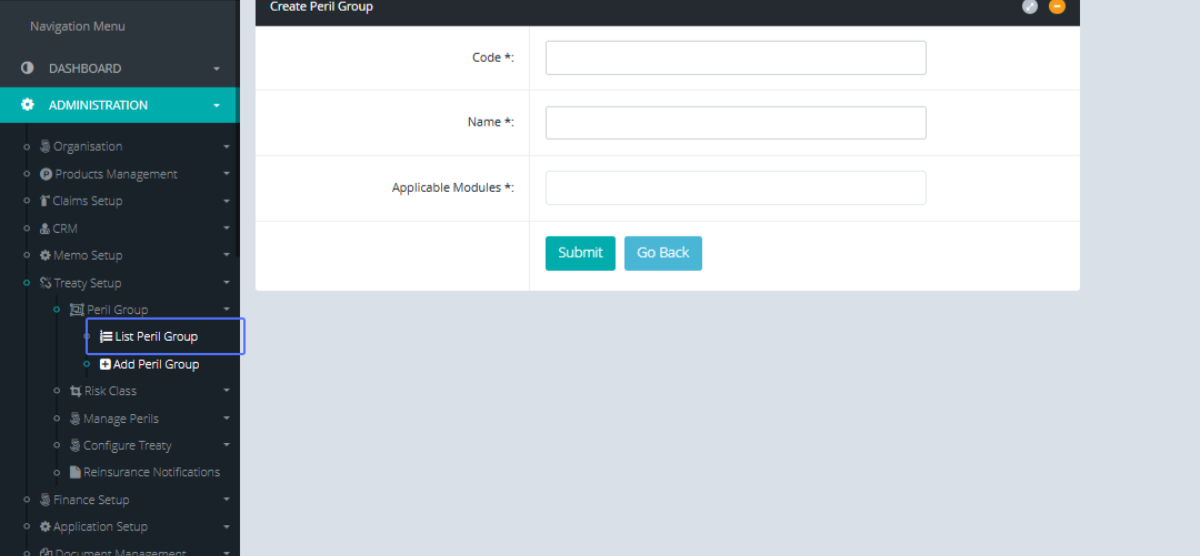
Click on the link "Add Peril Group" to get access to the Peril Group form.
Tab Name: Add Peril Group - GENOVA INSURANCE
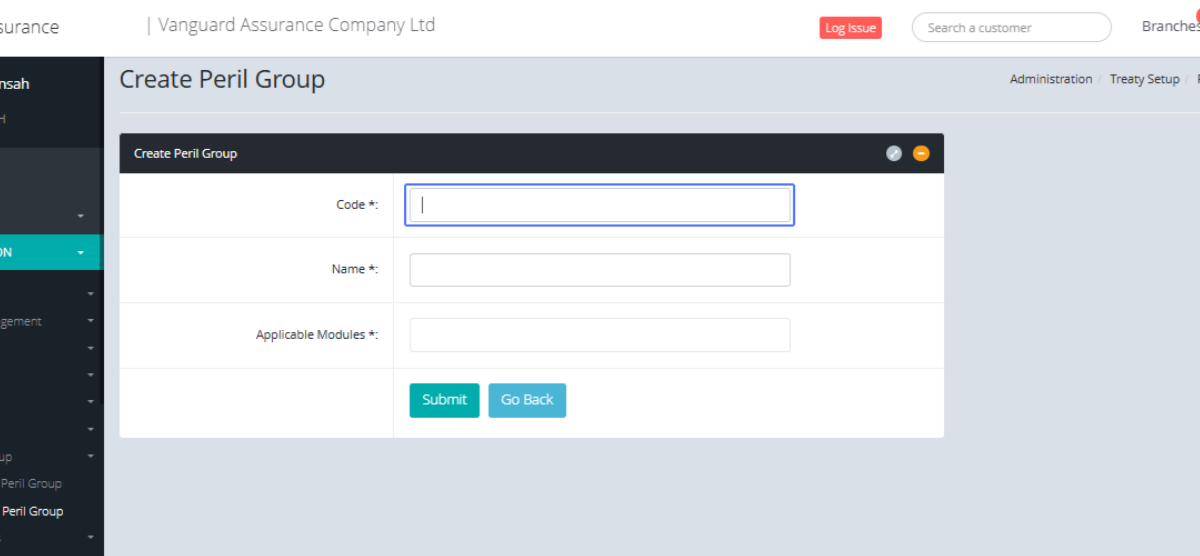
Enter the Code within the provided field.
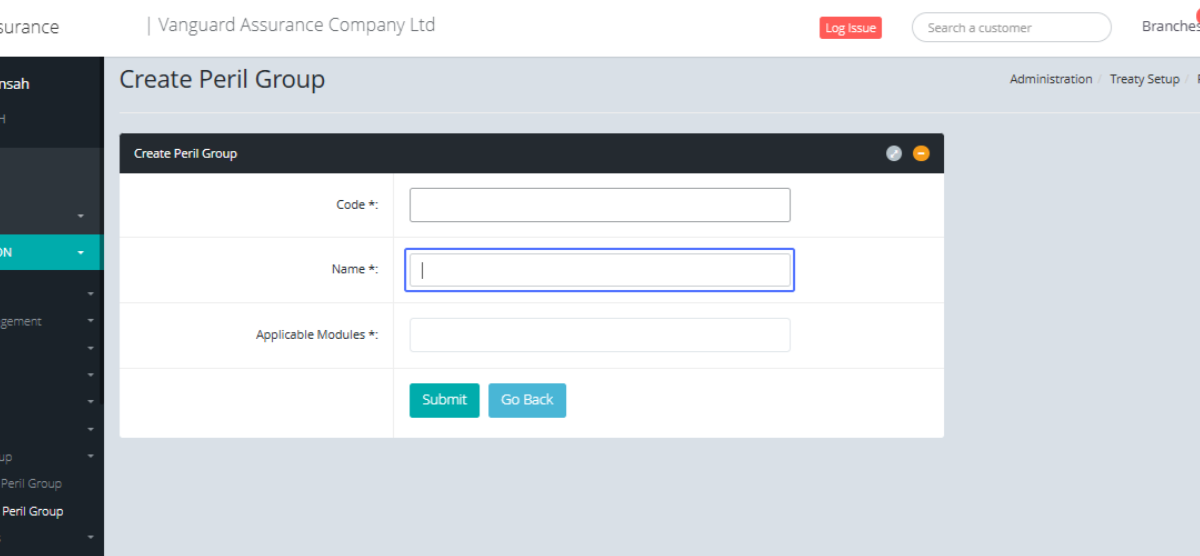
Enter the name within the provided field
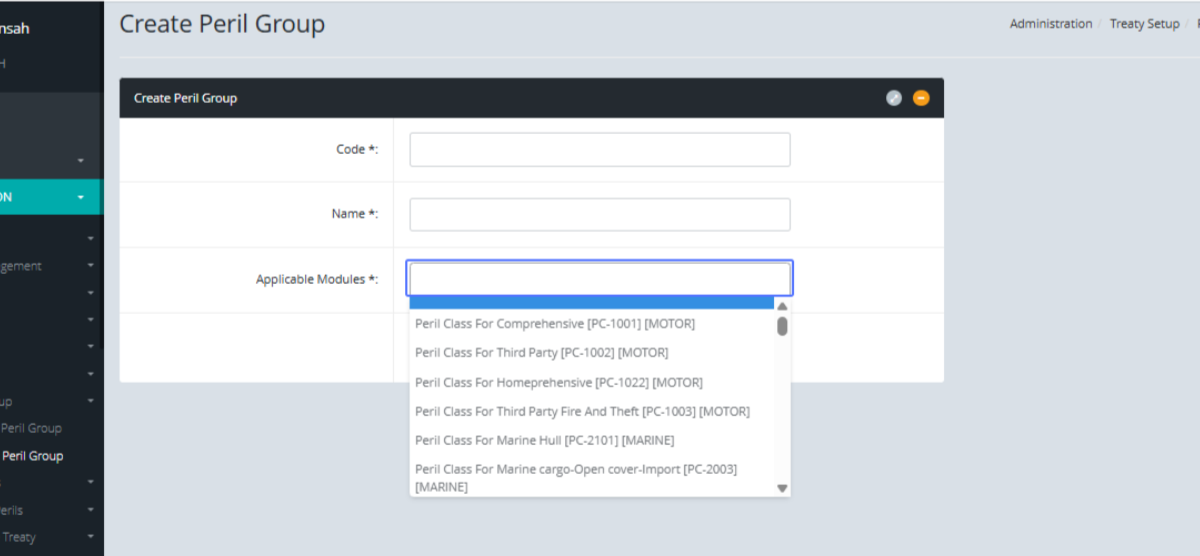
Select the Applicable Modules from the provided Options.
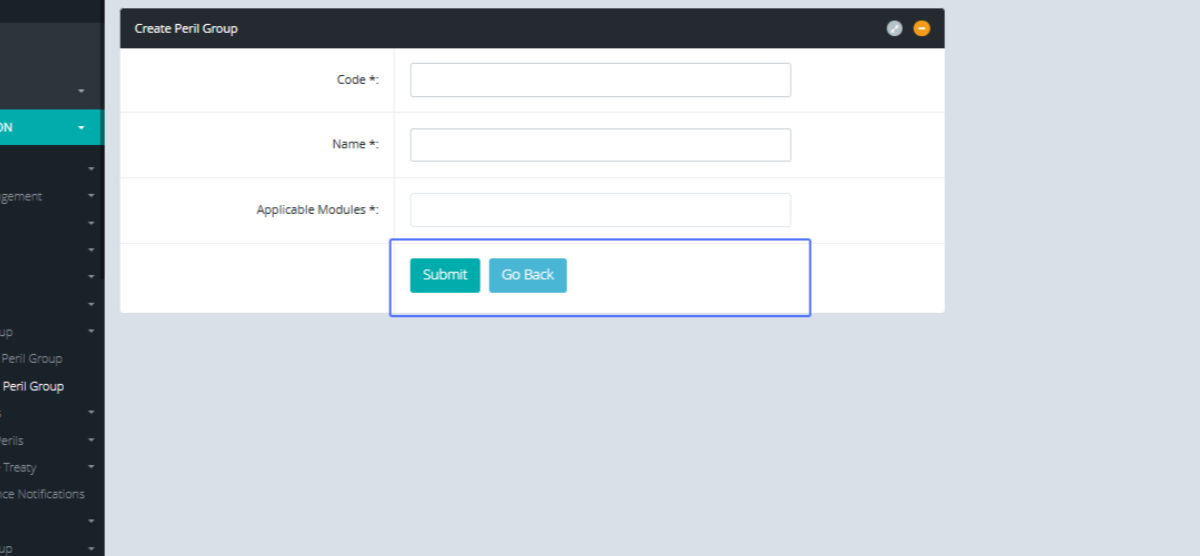
Click on "Submit” to save or “Go Back" once you are completed with the page.
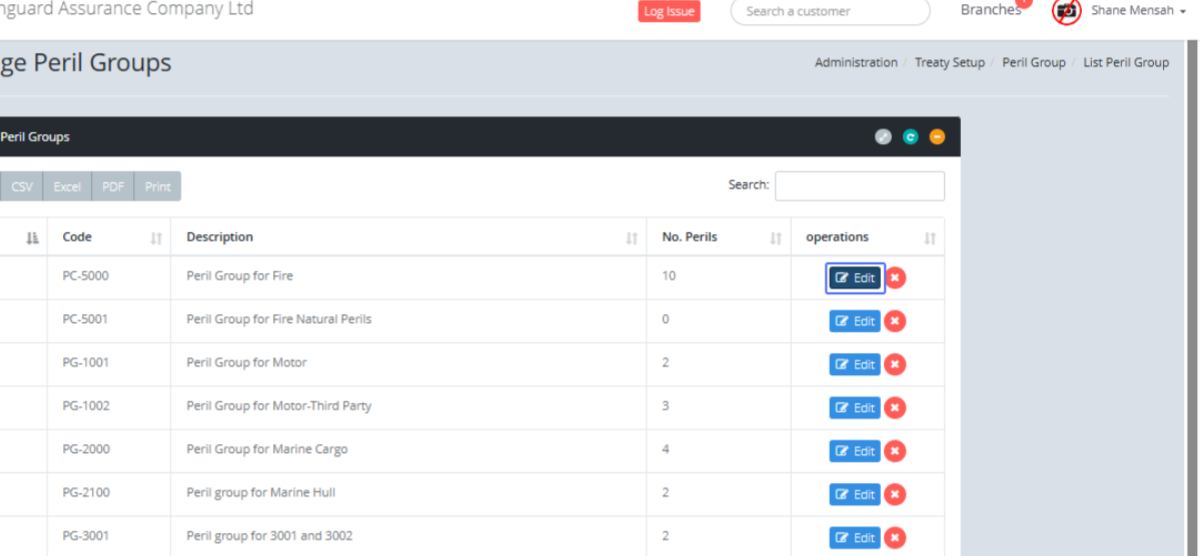
Click on the link "List Peril Group" to access the Peril Groups within the system.
Tab Name: List Peril Group - GENOVA INSURANCE
On the Peril Groups Page, click on the link "Edit" to edit the particular Peril.
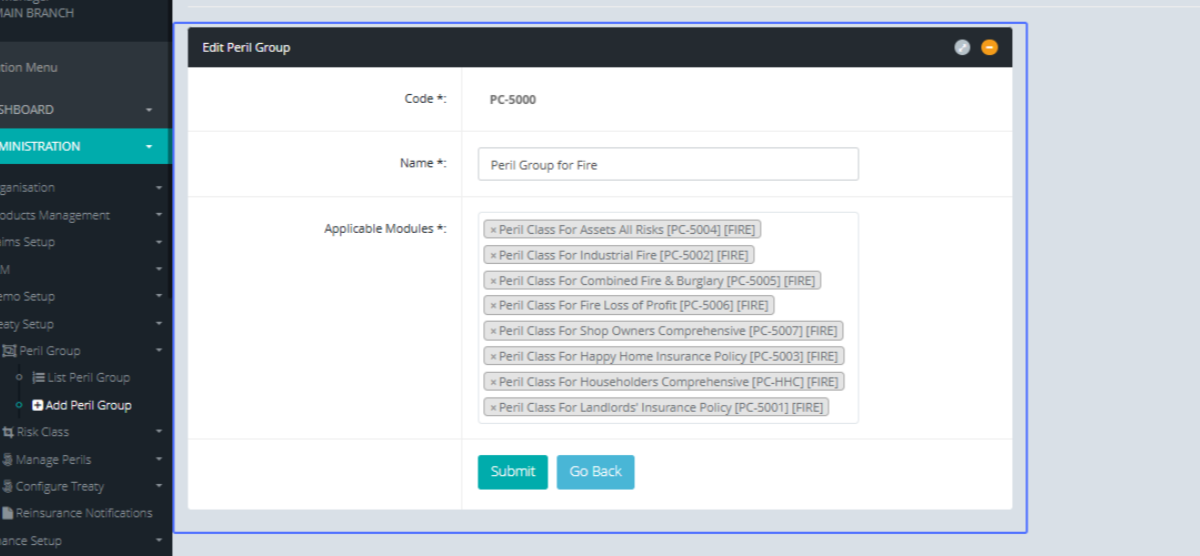
Tab Name: Add Peril Group - GENOVA INSURANCE
You will be Navigated to the page with the Edit Peril Form to make changes to that particular peril.
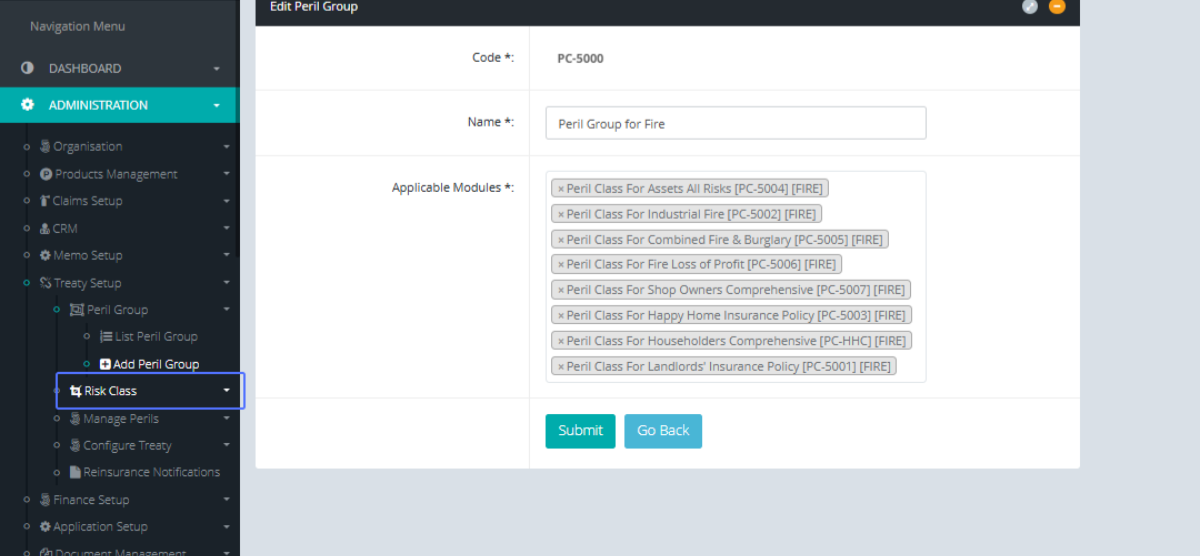
Click on the link "Risk Class" to get access to be items within the risk Class list.
Click on the link "Add Risk Class" to get access to the form to add a new risk Class.
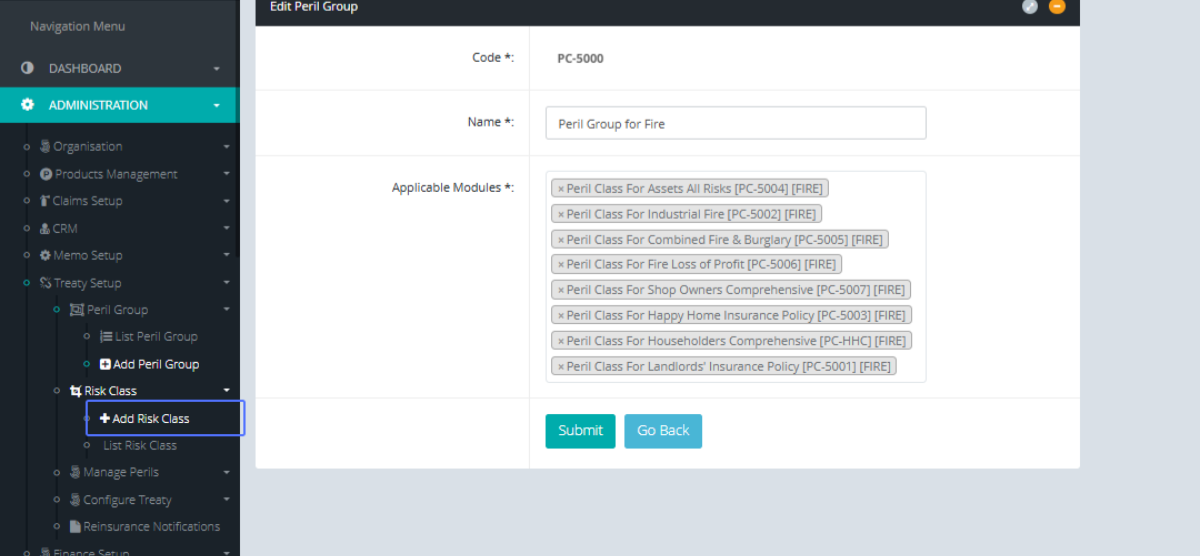
Tab Name: Add Risk Class - GENOVA INSURANCE
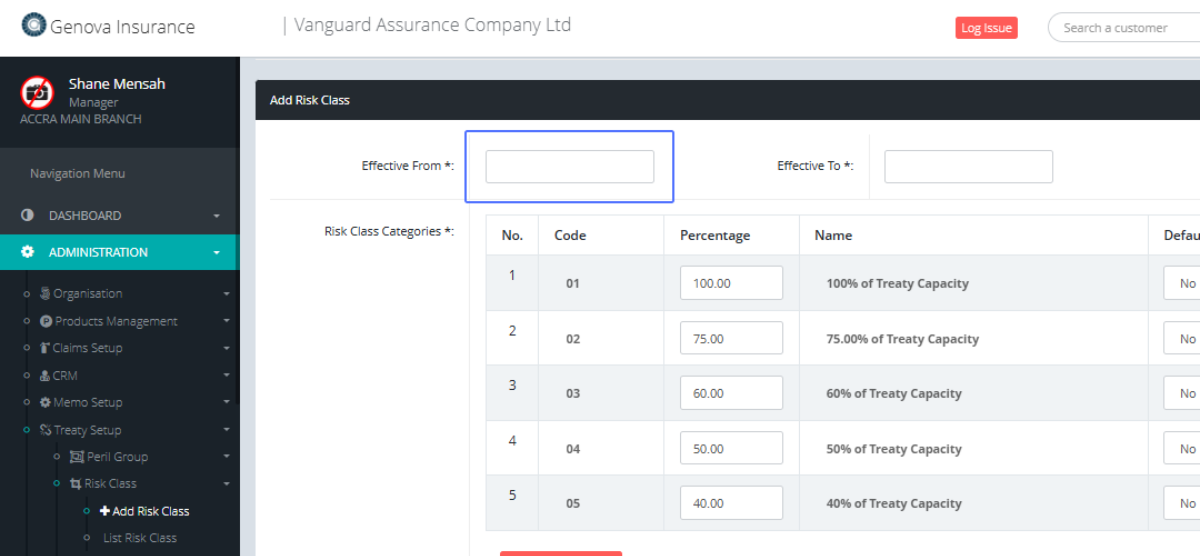
Click on the “Effective from” Date field to be able to select the Effective from Date within the calendar popup.
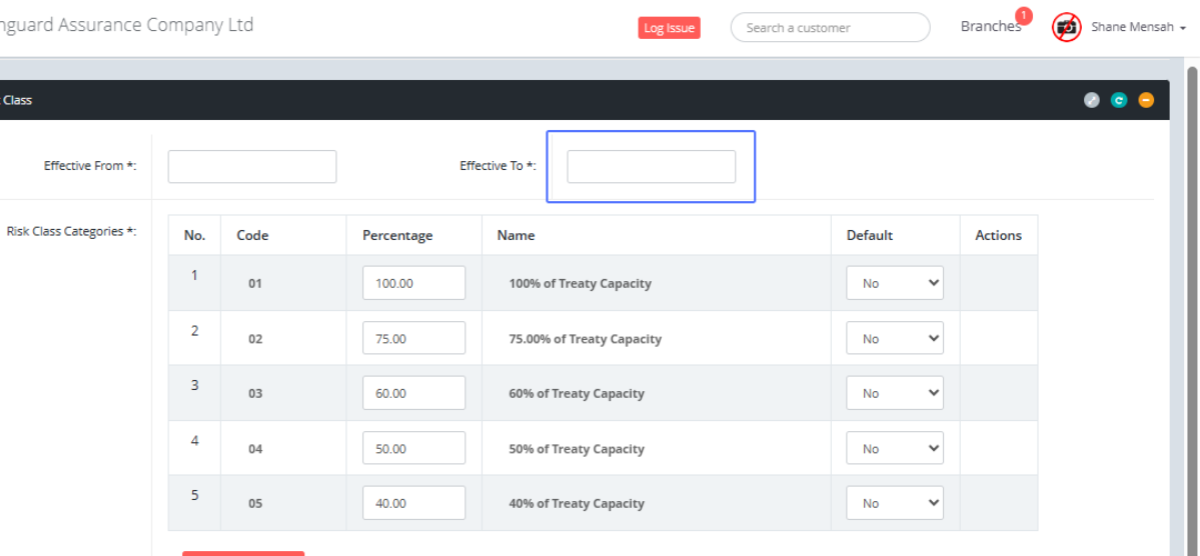
Click on the “Effective To” Date field to be able to select the Effective to Date within the calendar popup.
Just Below that we provide the applicable risk Categories for the User to make changes to
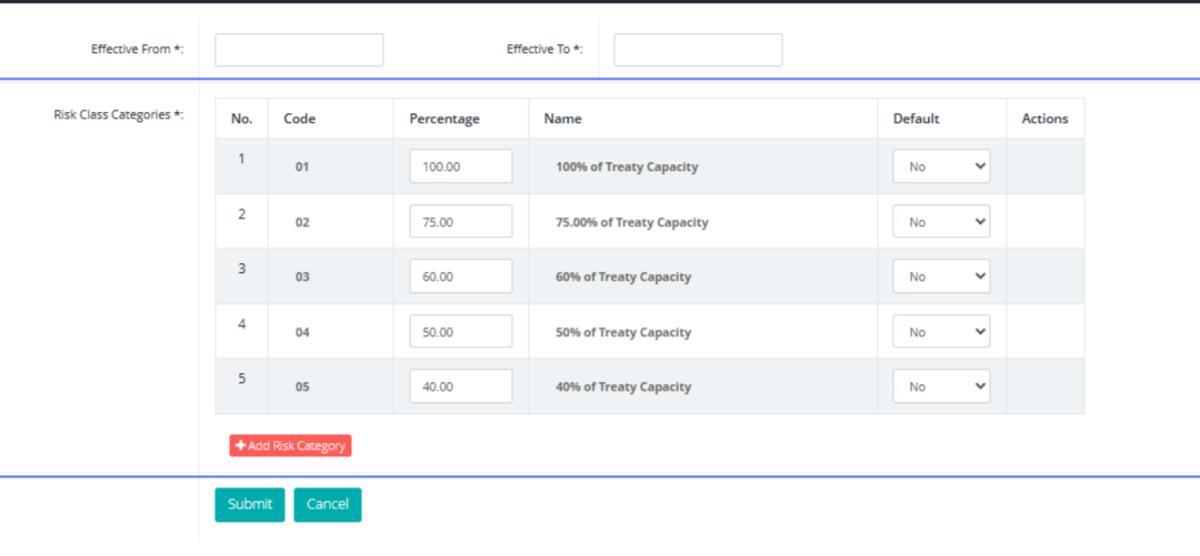
Click on the button "Add Risk Category" to be navigated to the form to add a new list category to the list
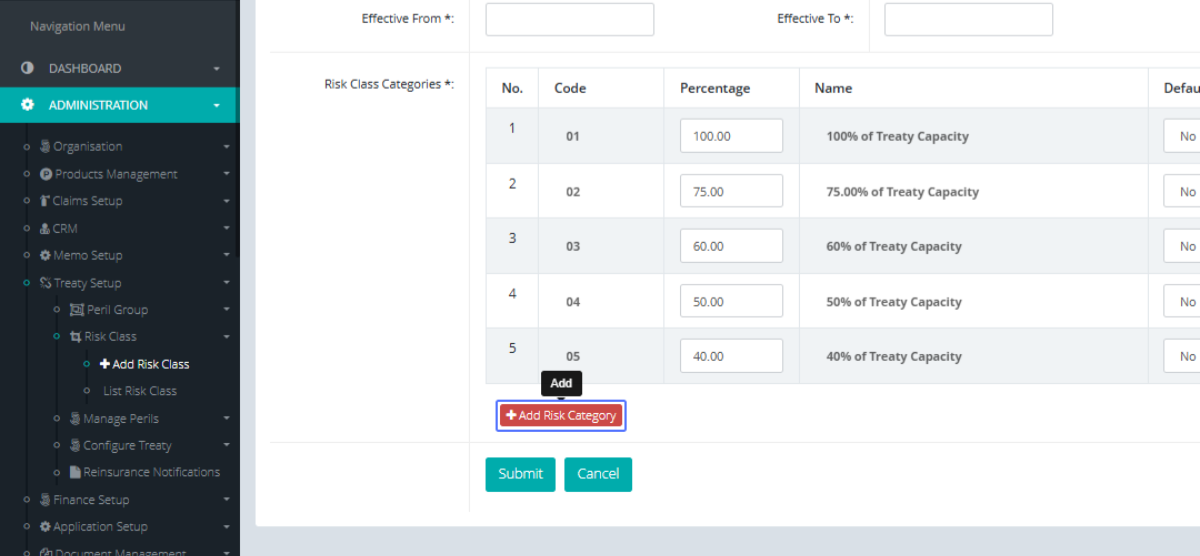
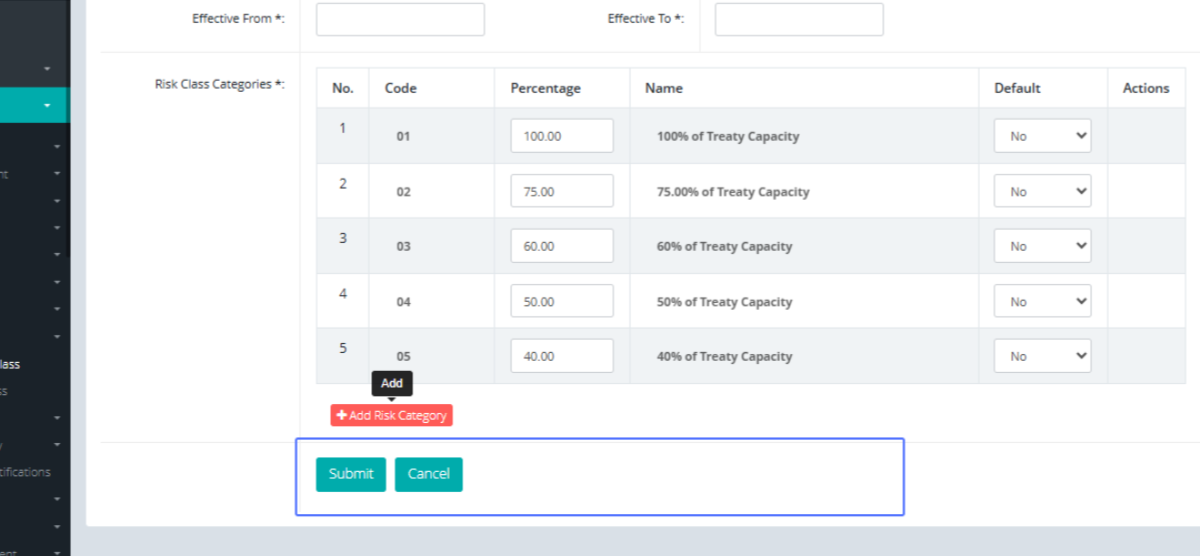
Click on "Submit” to save or “Cancel" to go back
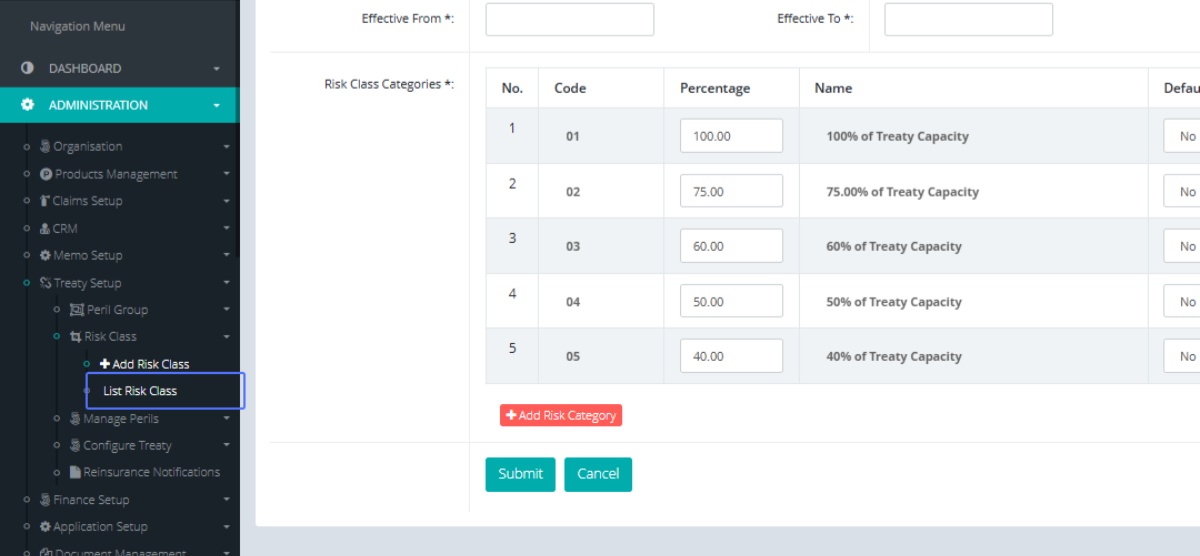
Click on the link "List Risk Class" to be navigated to the List Risk Class page
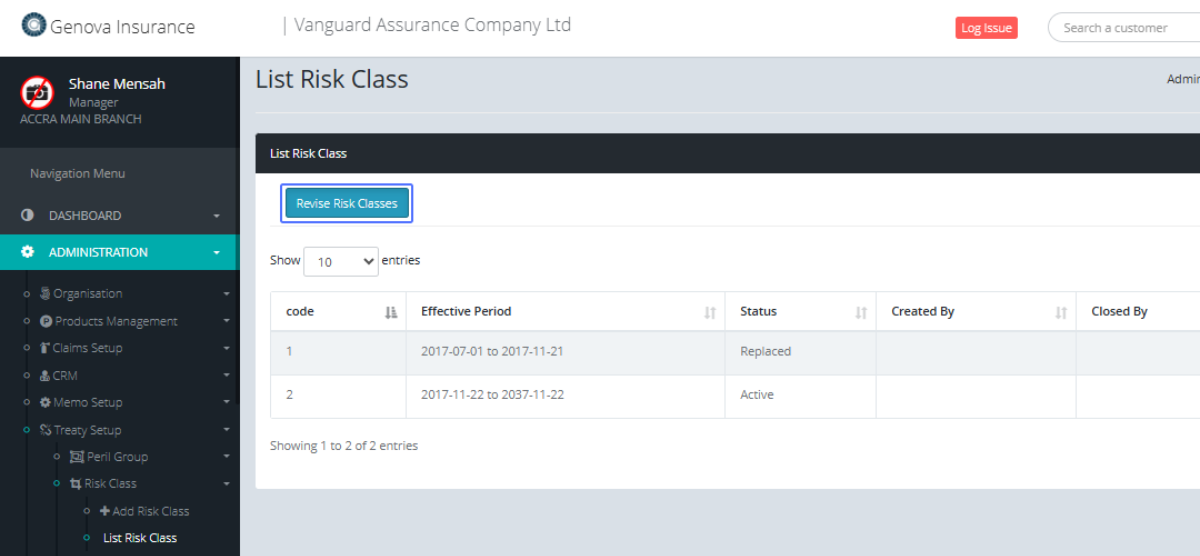
Tab Name: List Risk Class - GENOVA INSURANCE
On the List Risk Class Page, Click on the link "Revise Risk Classes" to reverse any Risk Class
Tab Name: Add Risk Class - GENOVA INSURANCE
You will then be navigated to the risk Class page to make changes to that specific risk Class
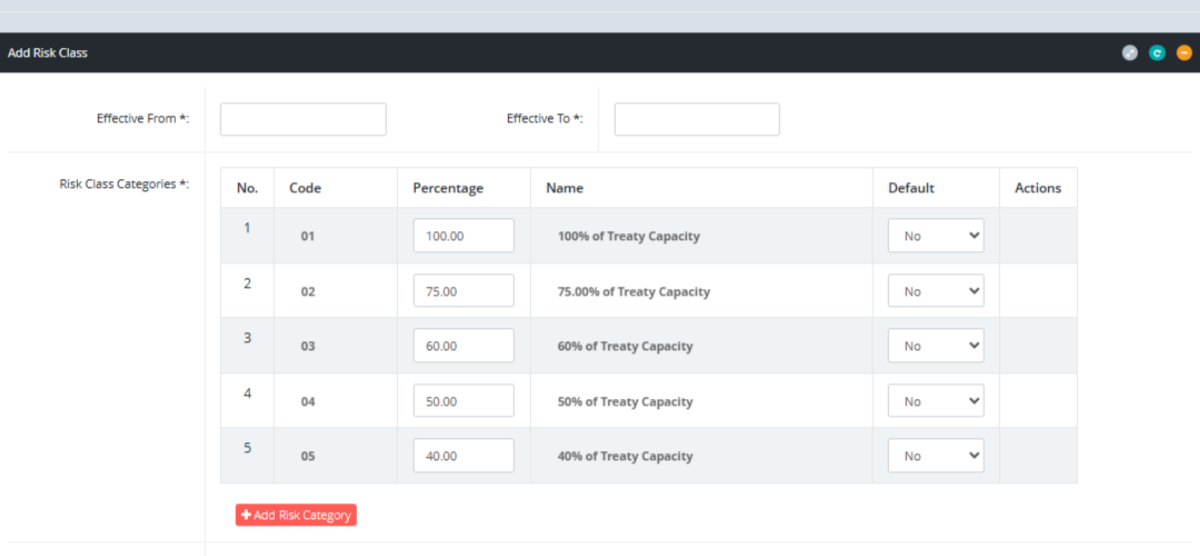
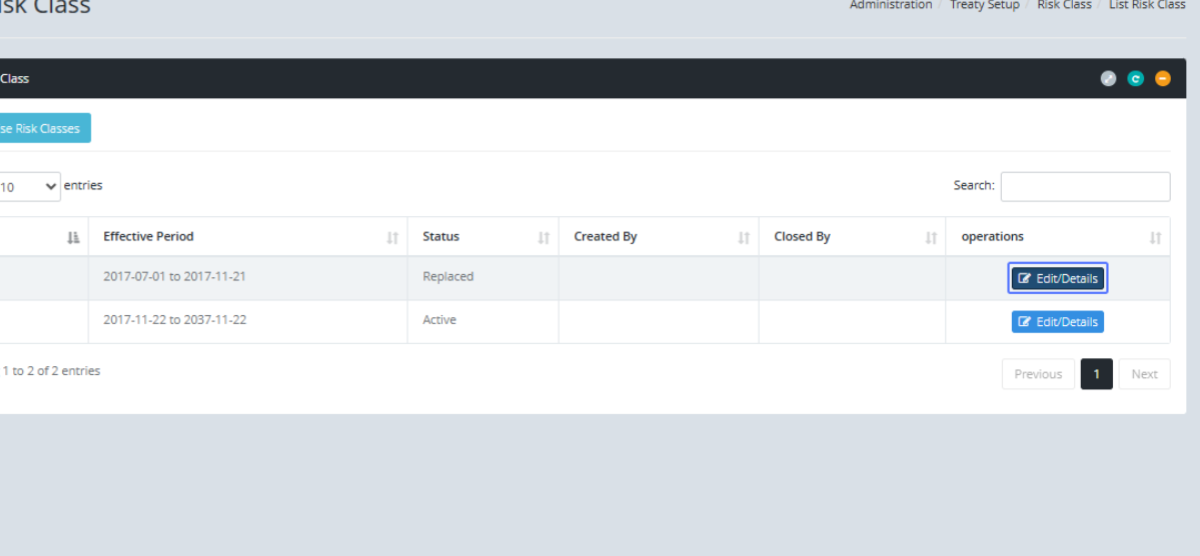
Tab Name: List Risk Class - GENOVA INSURANCE
Click on the link "Edit/Details" button to open that specific Risk class to make changes to it.
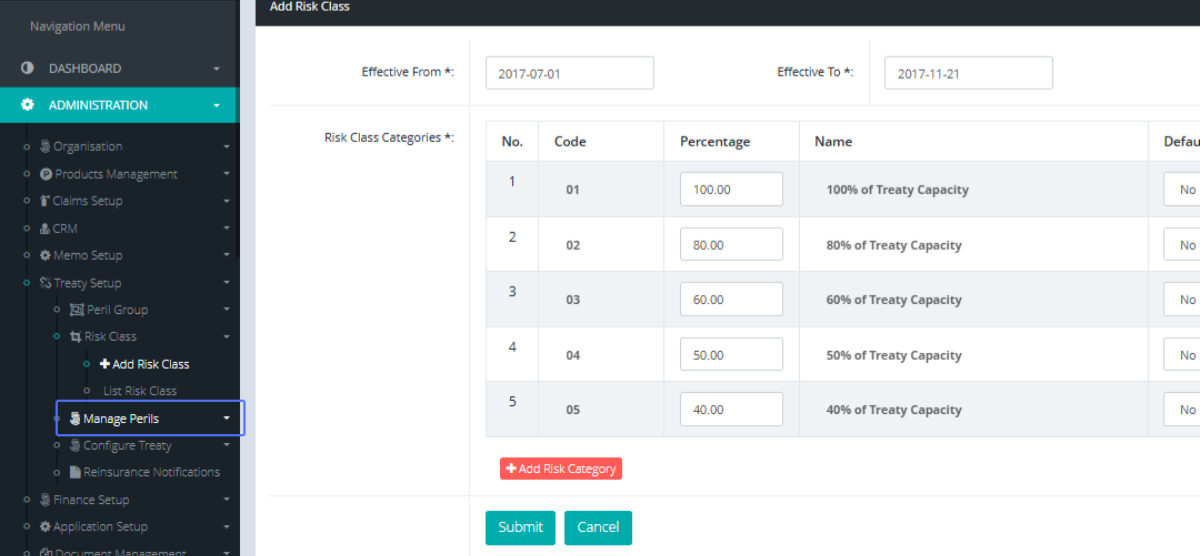
Tab Name: Add Risk Class - GENOVA INSURANCE
Click on the link "Manage Perils" button to see the Manage Perils list items.
Under Manage Perils, Click on the link "Add Peril Class" to open the Add Peril Class Page.
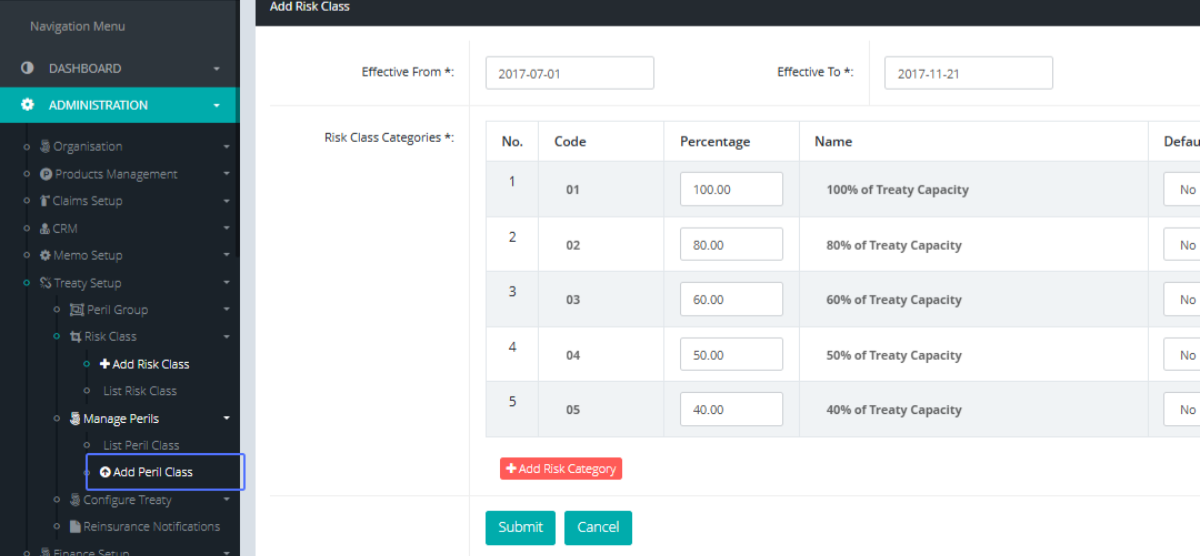
Tab Name: Add Peril Class - GENOVA INSURANCE
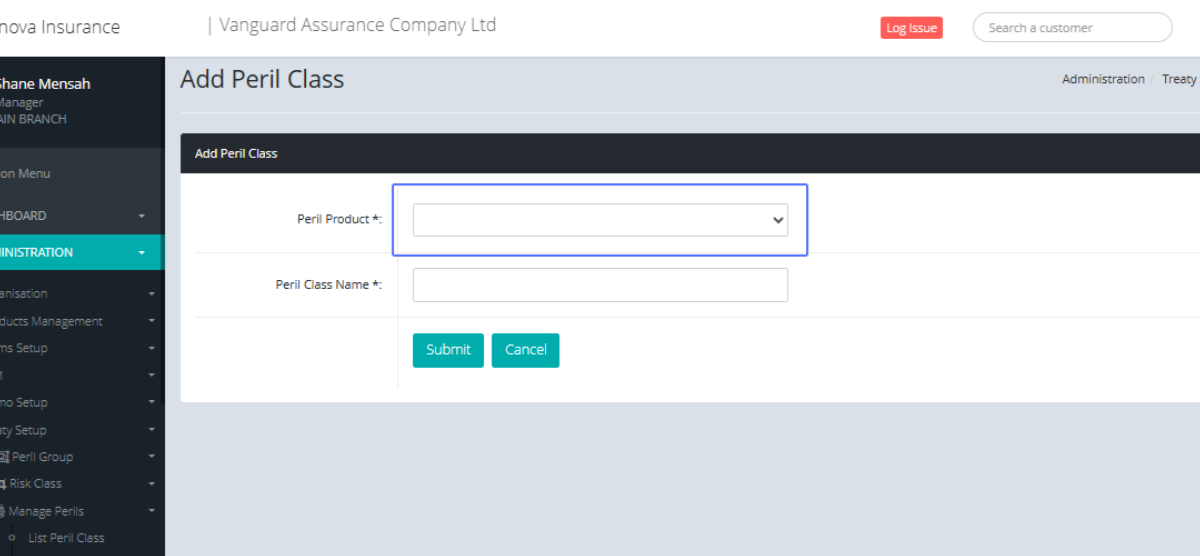
The Add Peril Class shows a Form to add a Peril Class. Select the Peril Product from the Available Peril products within the system.
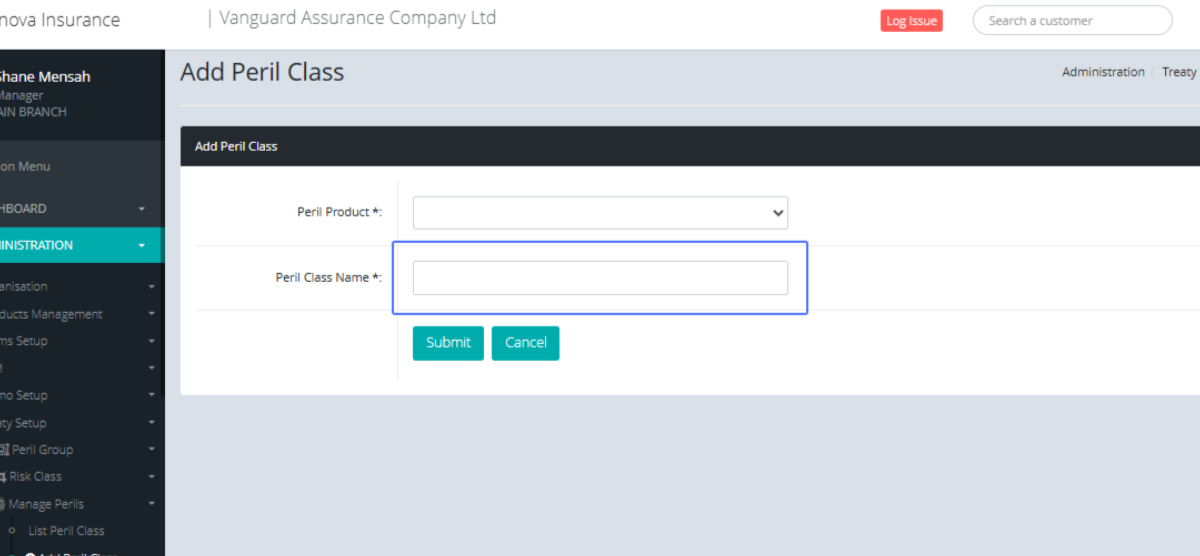
the Peril Class Name within the Input field Provided.
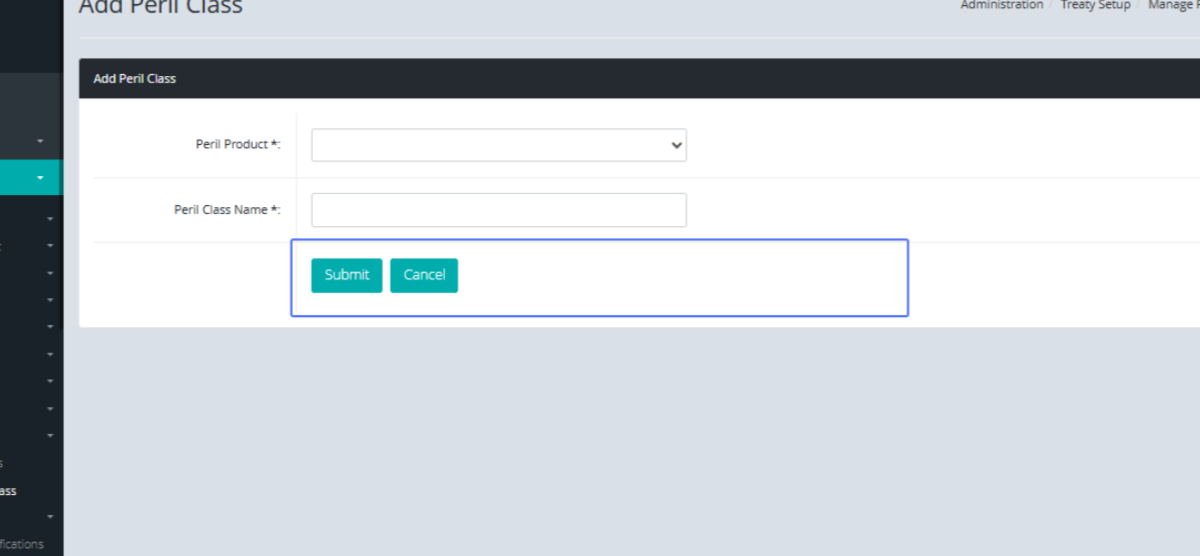
Click on the "Submit” button to save the Peril Class or “Cancel" to go back.
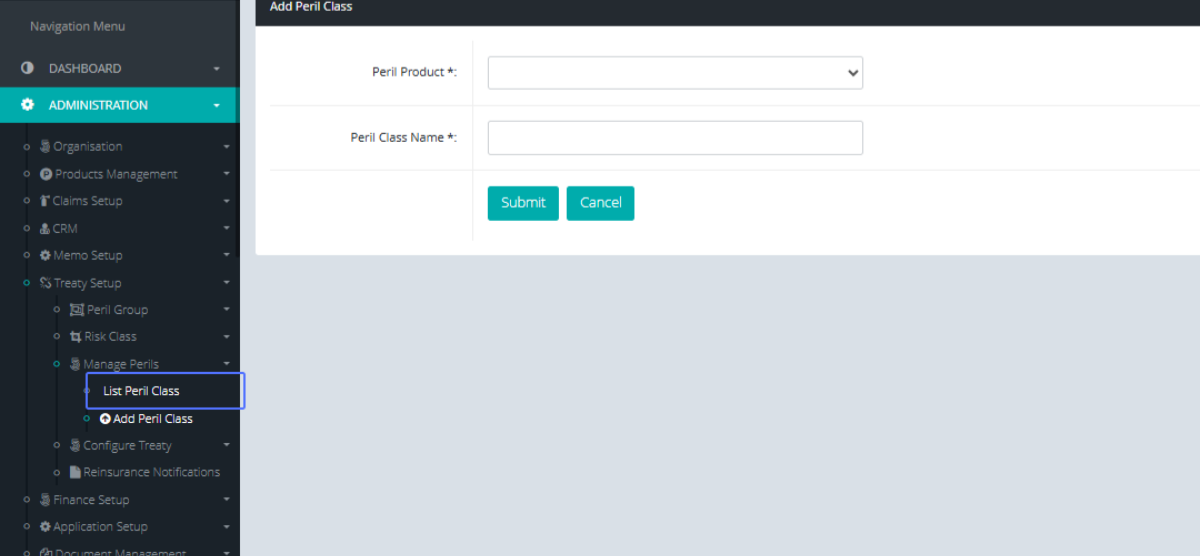
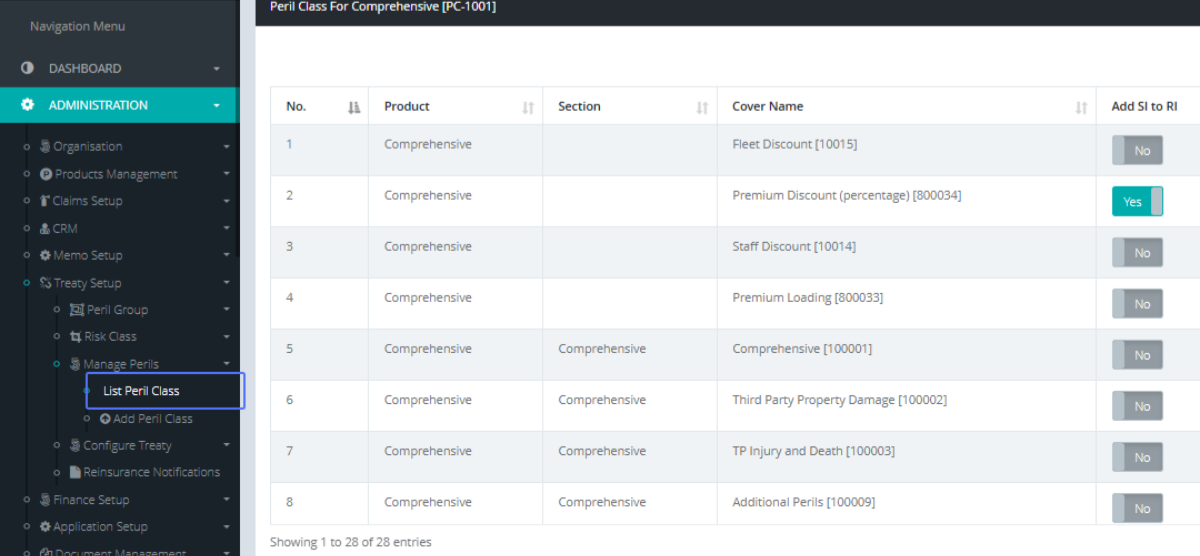
Click on the link "List Peril Class" to show the list of the peril Class within the system.
Tab Name: List Peril Class - GENOVA INSURANCE
Click on the link "MAP COVERS" to map the Covers to the Peril Class Item.
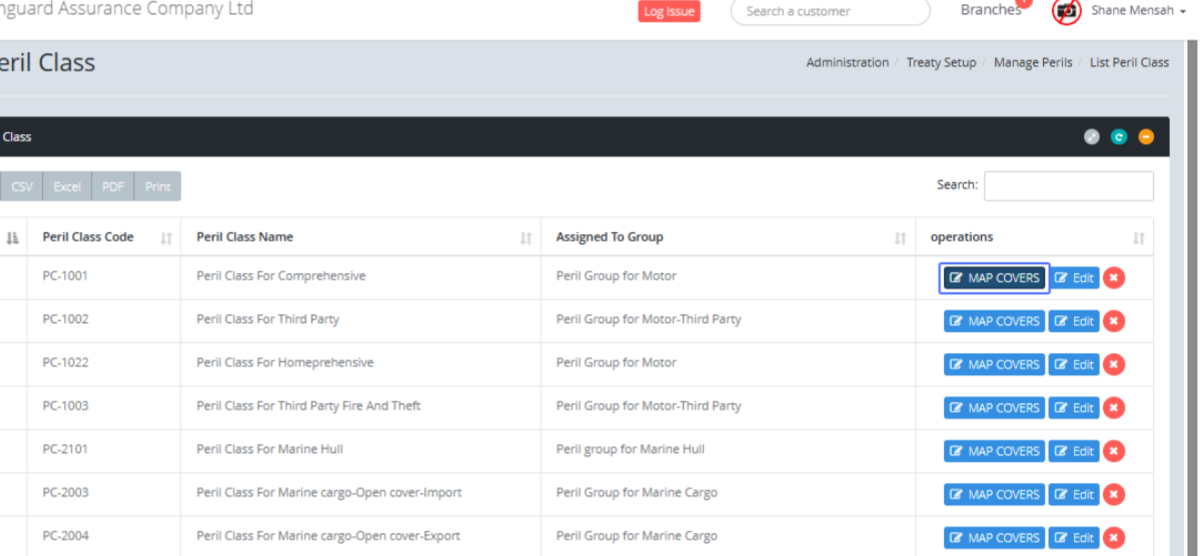
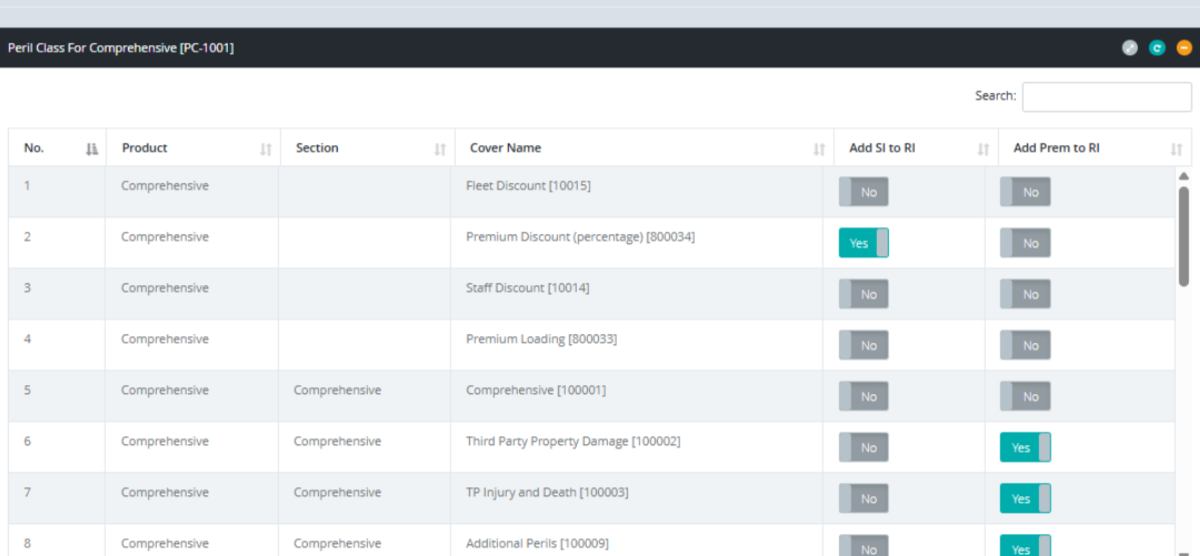
You will be navigated to the Peril Classes for the Specific item, you selected, where you can click the check boxes to any applicable fields.
We can go back to the Peril Class list by clicking on the link "List Peril Class" to show the list of Peril Classes within the system.
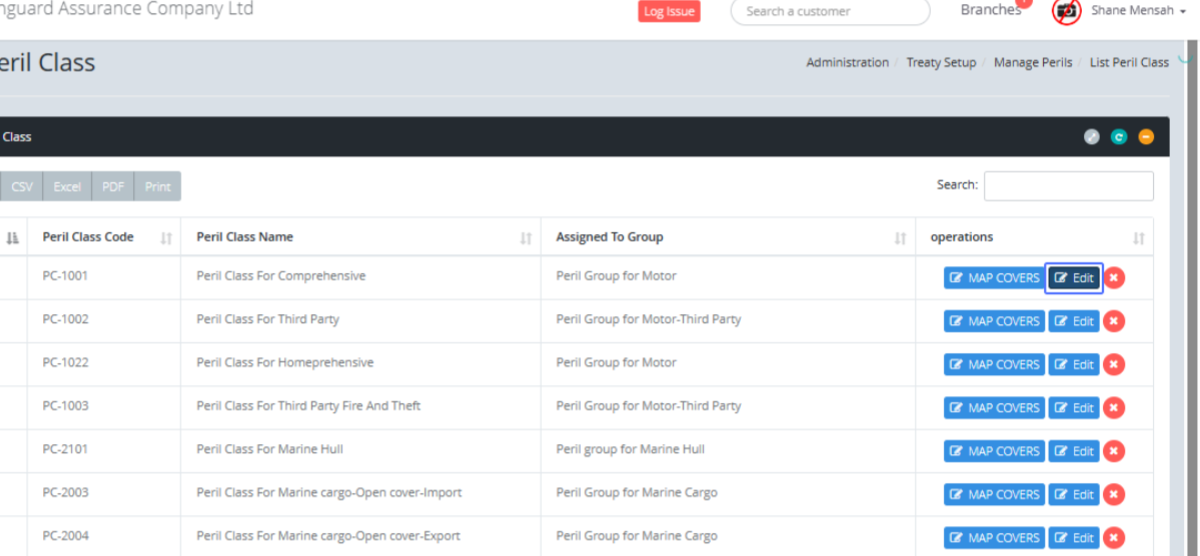
Click on the link "Edit" to Edit the Specific Peril Class.
Tab Name: Add Peril Class - GENOVA INSURANCE
You will be navigated to the form showing the specific peril Class. The Peril Class Code will generate automatically.
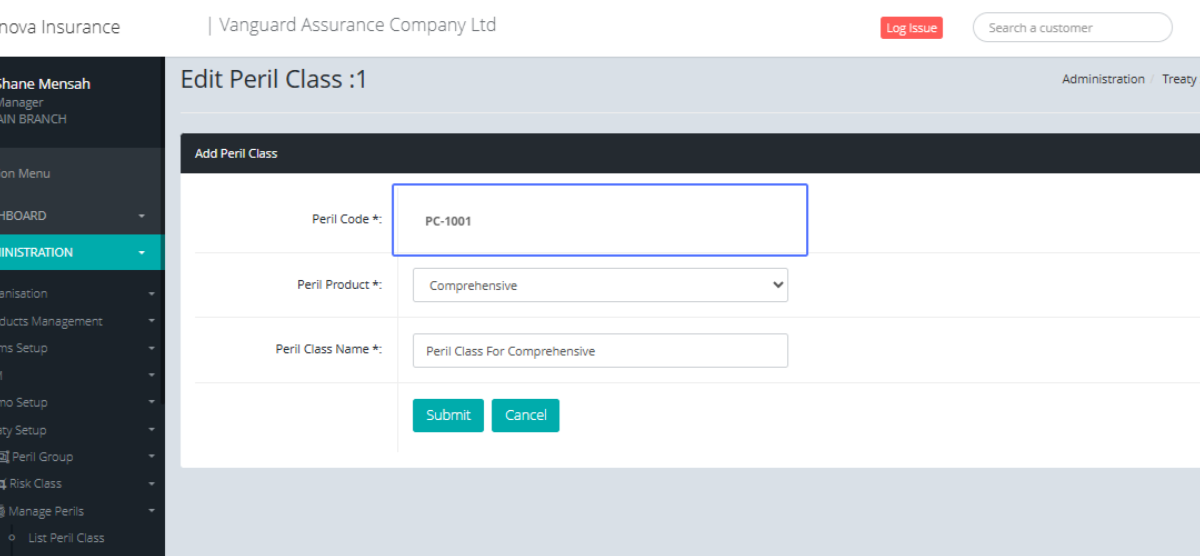
Select the Peril Product from the provided dropdown.
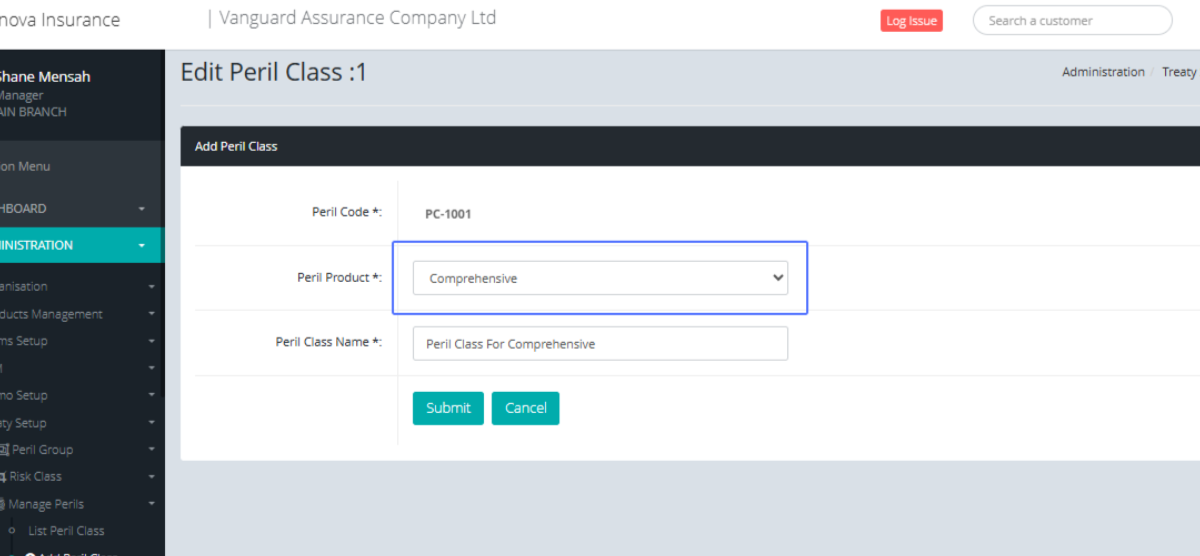
Enter the Peril Class Name within the provided field.
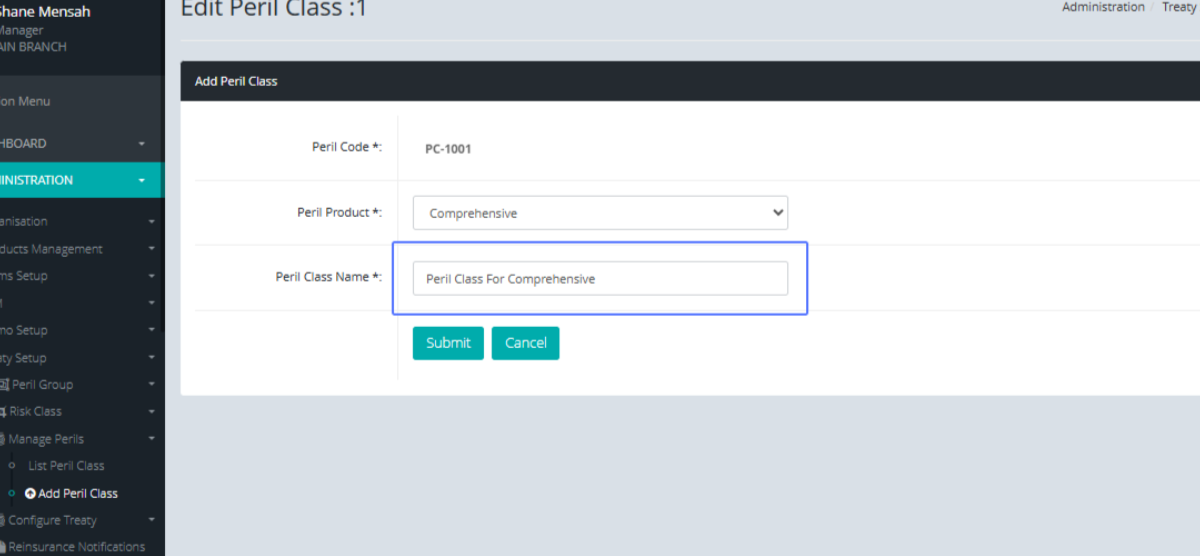
Click on the "Submit” Button to save or the “Cancel" button to go back.
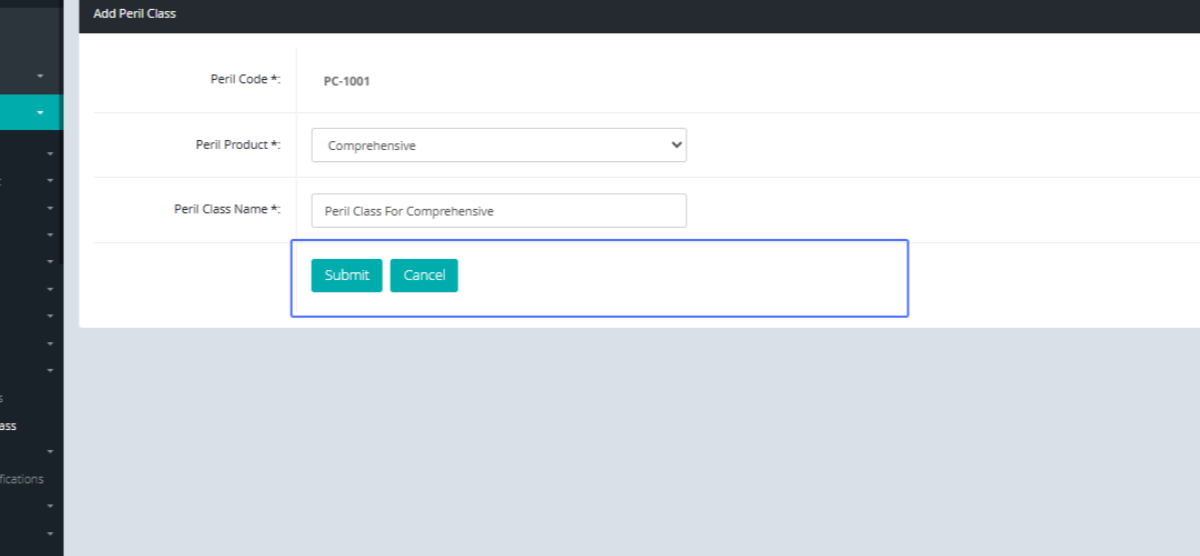
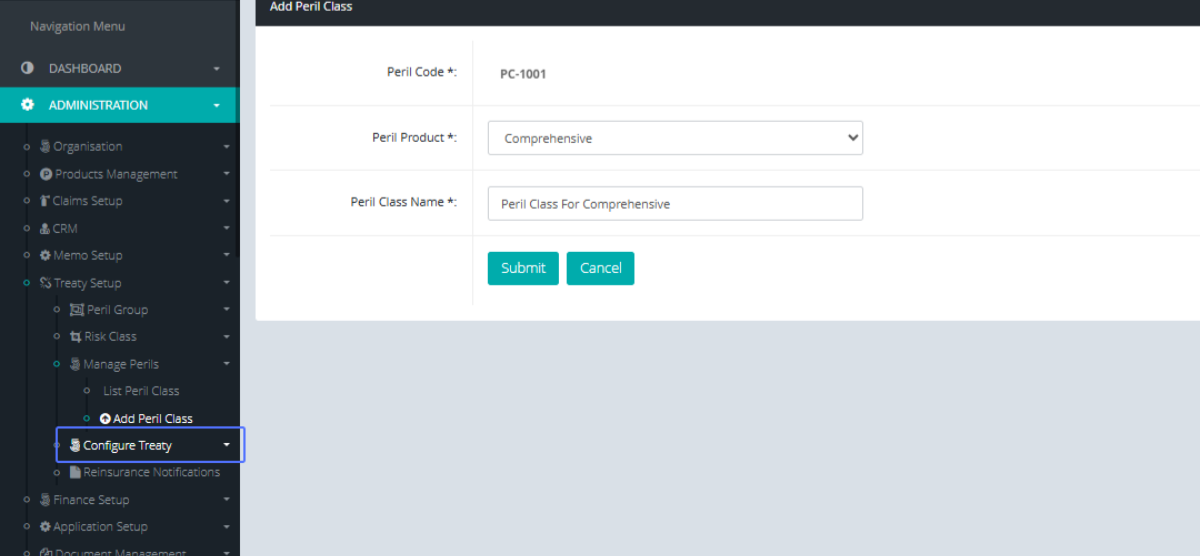
Click on the link "Configure Treaty" to be access items within the Treaty Configuration.
Click on the link "Create Treaty" to get access to the create treaty form
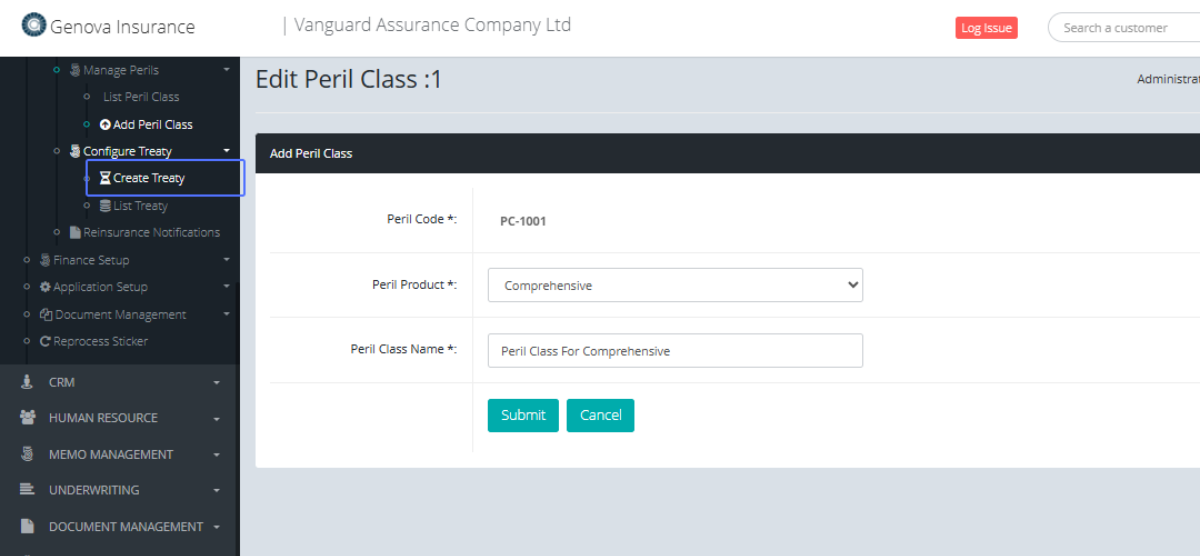
Tab Name: Create Treaty - GENOVA INSURANCE
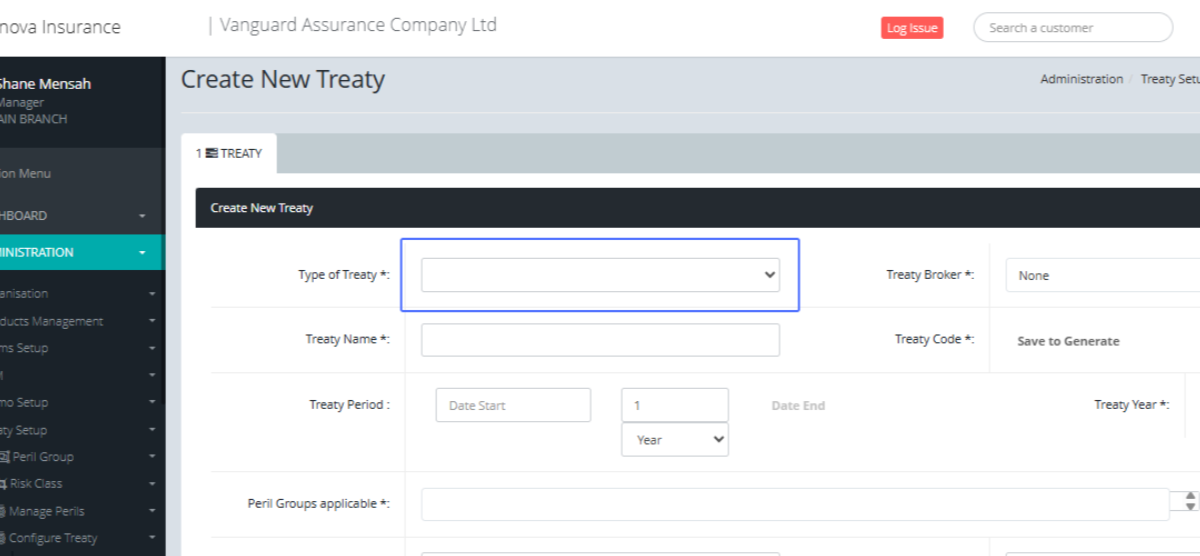
On the Create New Treaty Page. Click on the Treaty type from the provided dropdown.
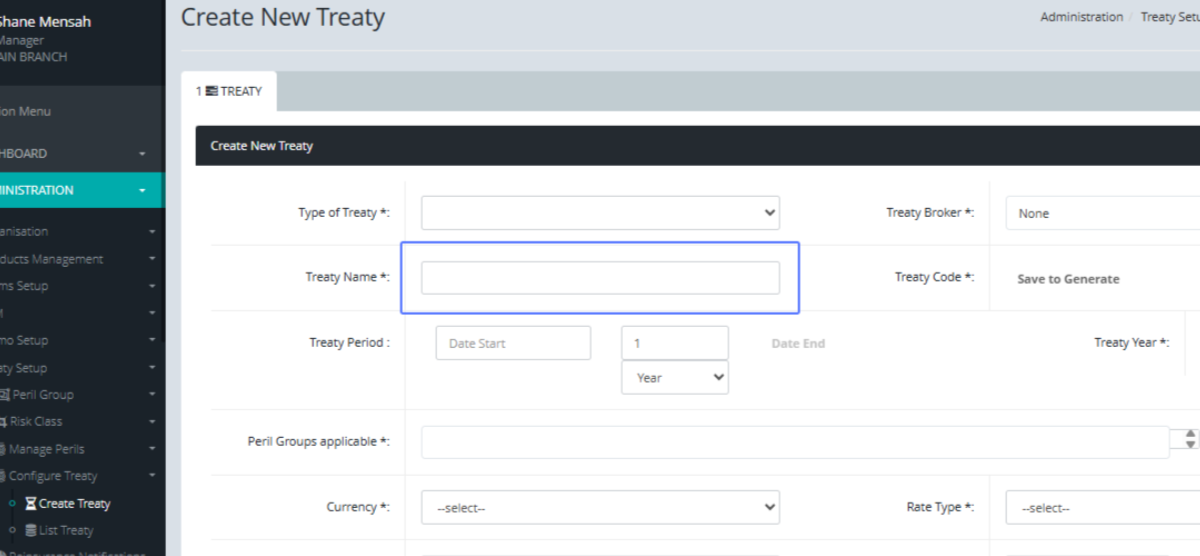
Enter the treaty Name within the field provided.
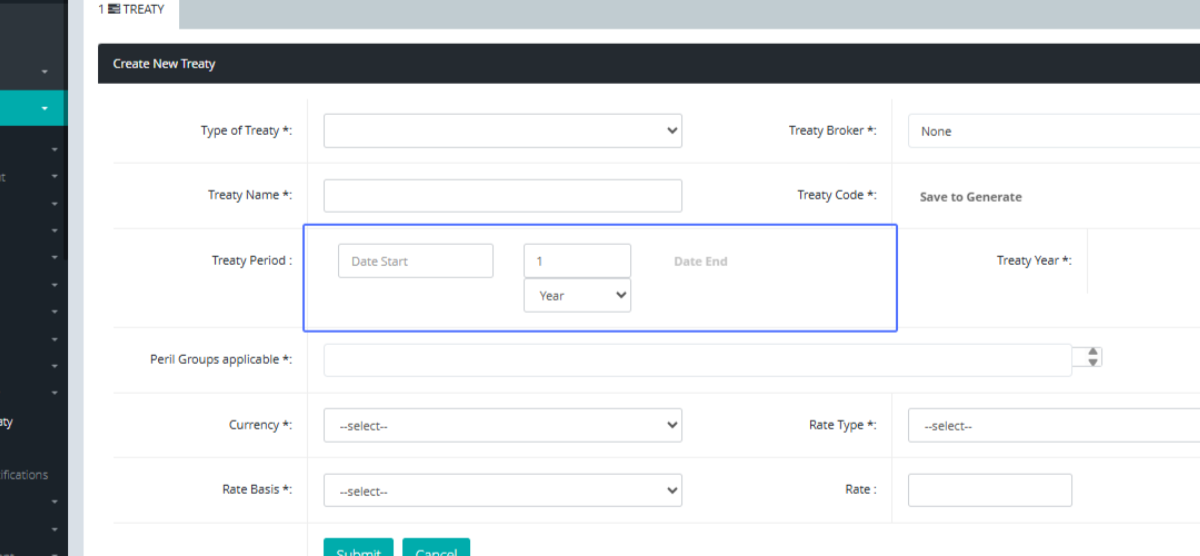
Click on the treaty Period, by selecting the "Year, Month and Day".
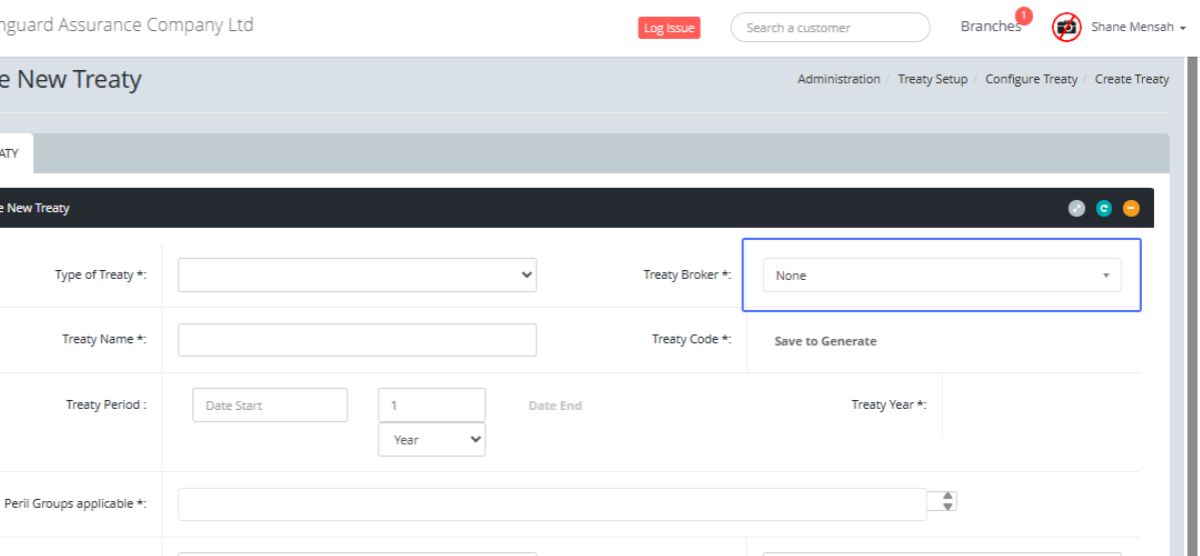
Select the Treaty Broker from the provided dropdown.
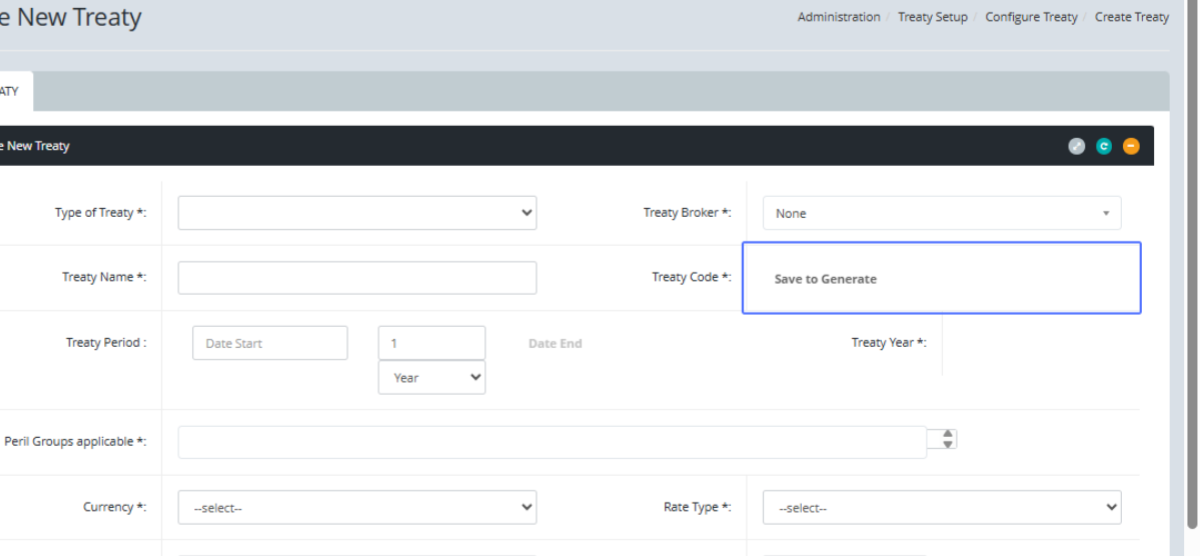
After saving the treaty code the Treaty gets generated.
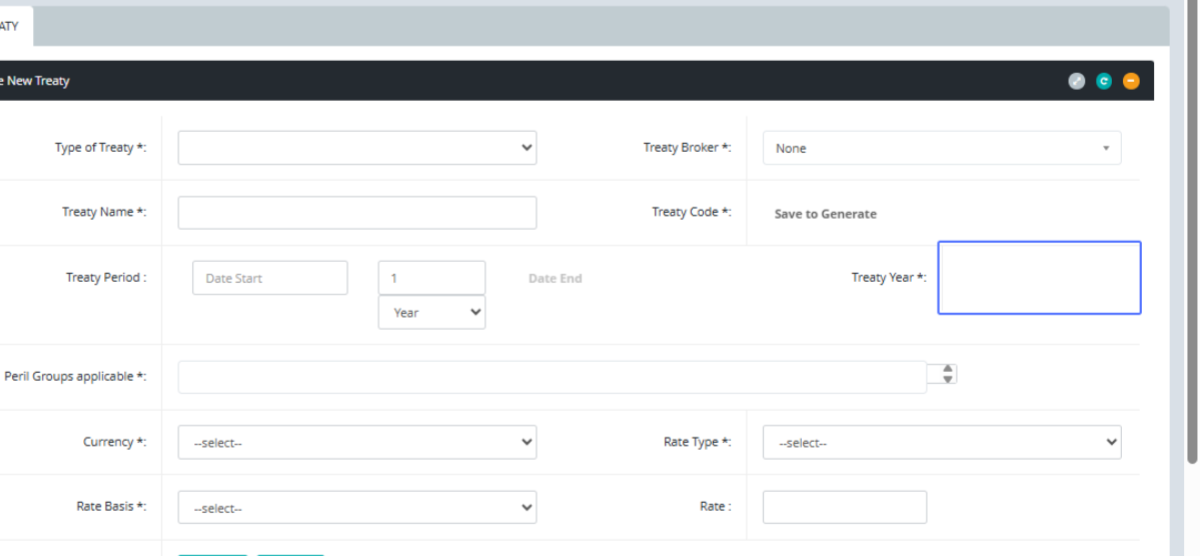
Select the treaty Year from the calendar popup
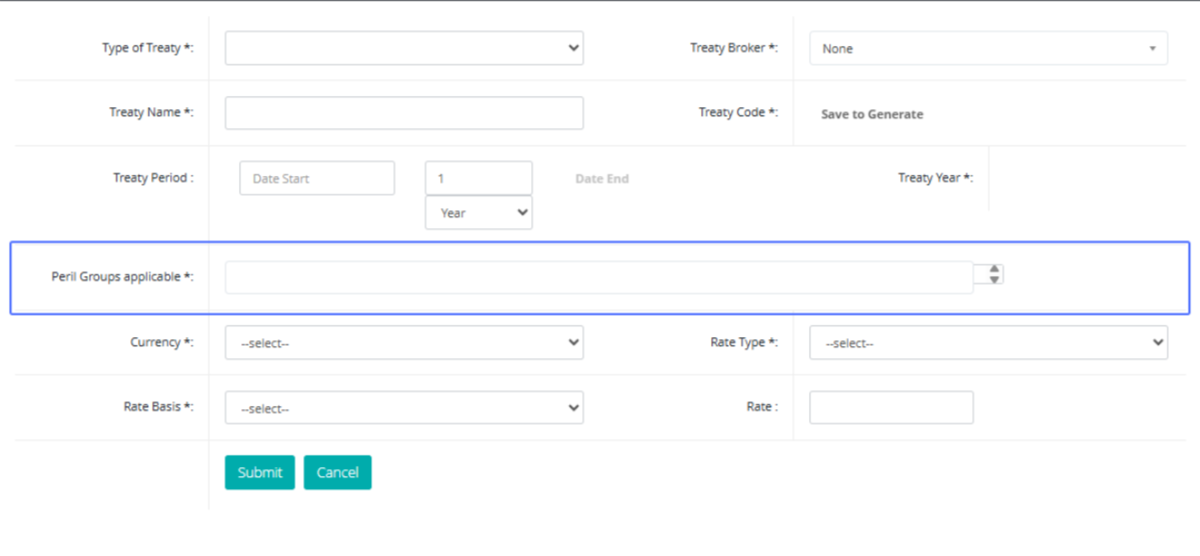
Select the Peril Groups Applicable from the provided list
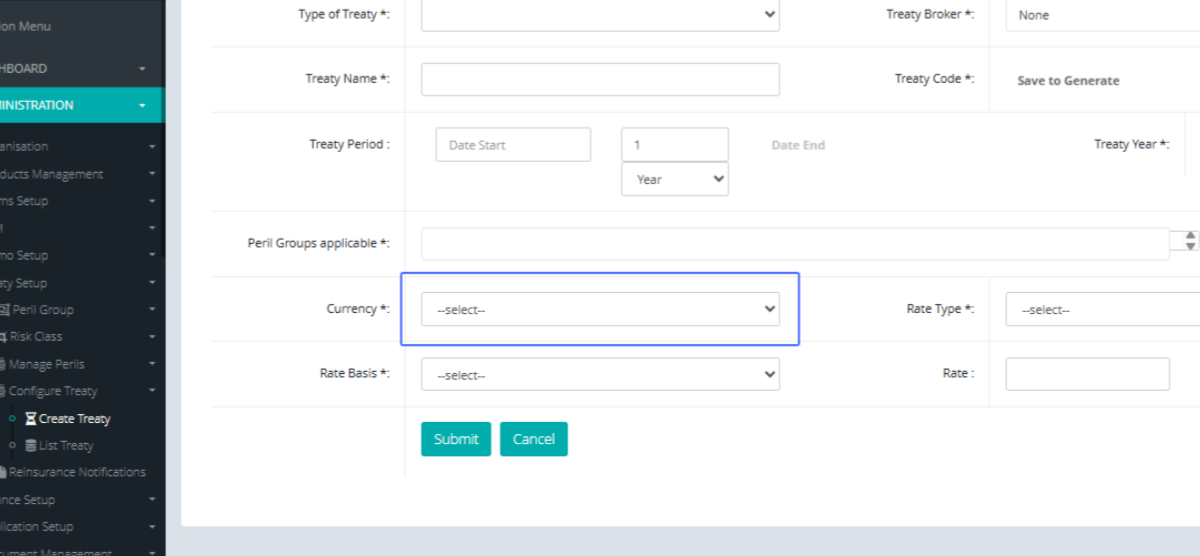
Select the currency from the applicable list.
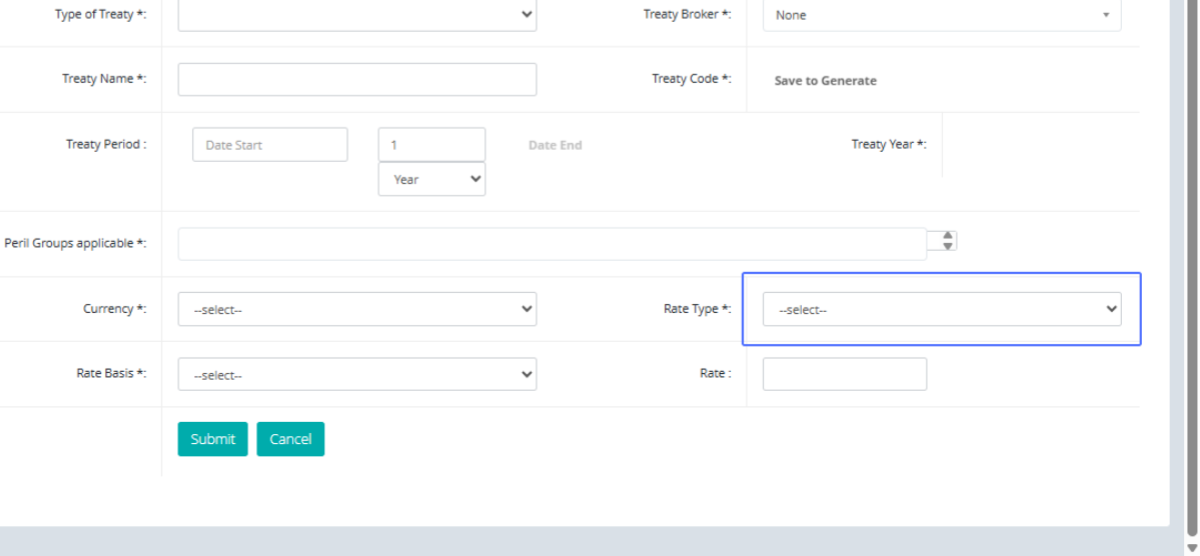
Select the Rate Type from the provided dropdown.
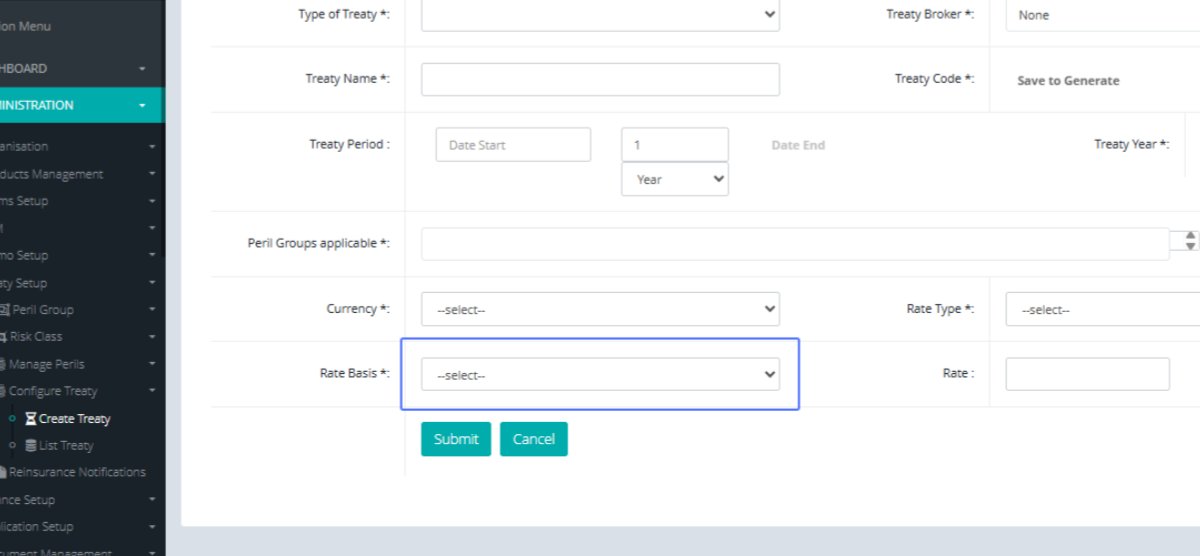
Select the Rate Basis from the Provided dropdown.
Enter the given rate in the provided field.
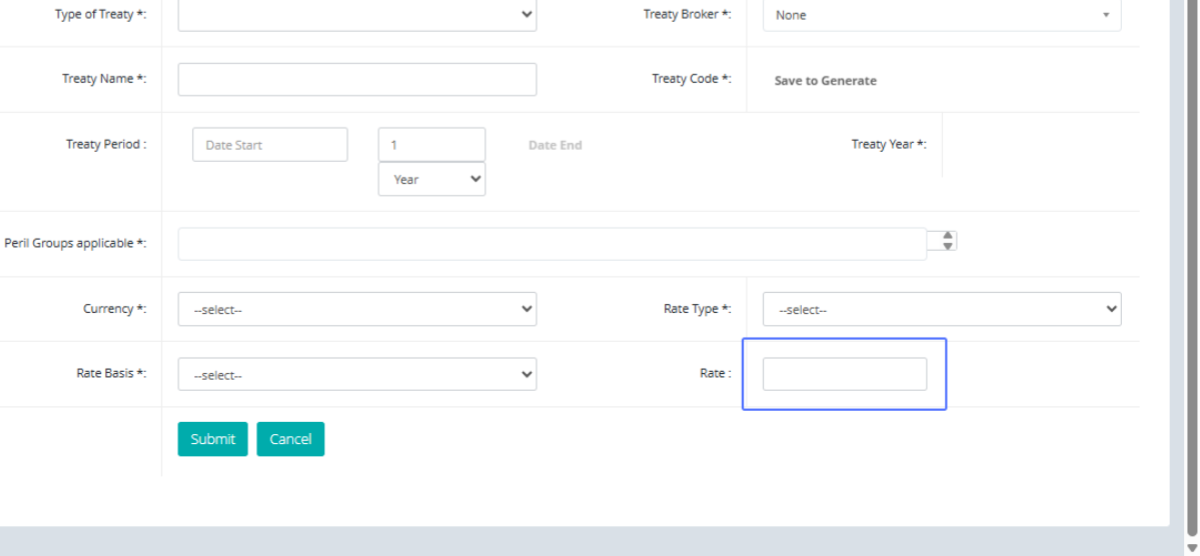
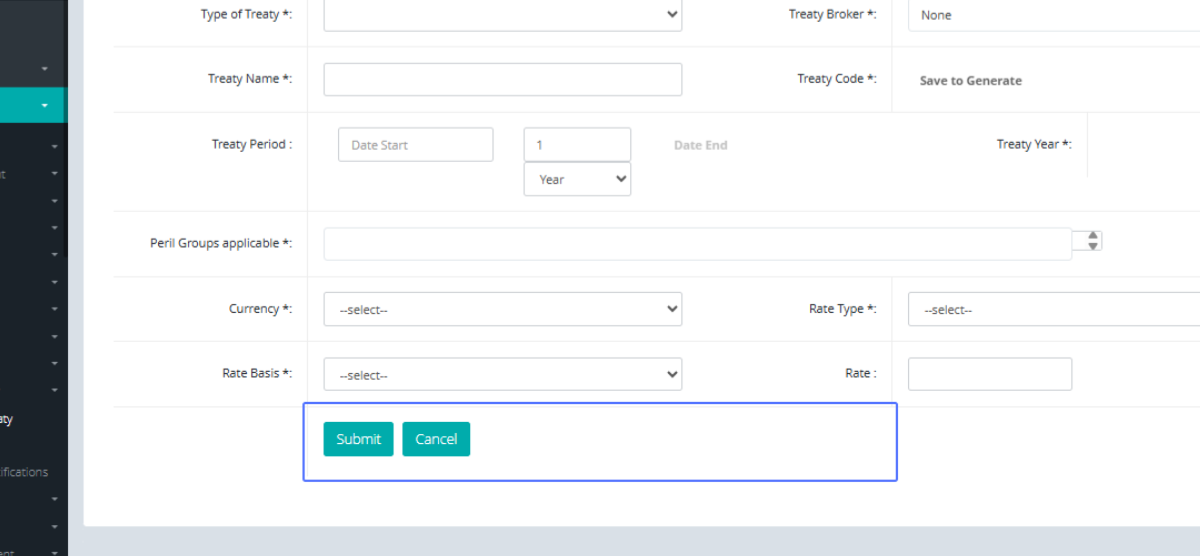
Click on the "Submit” button to save the changes and “Cancel" to go back
Click on the link "List Treaty" to get access to the Treaty List.
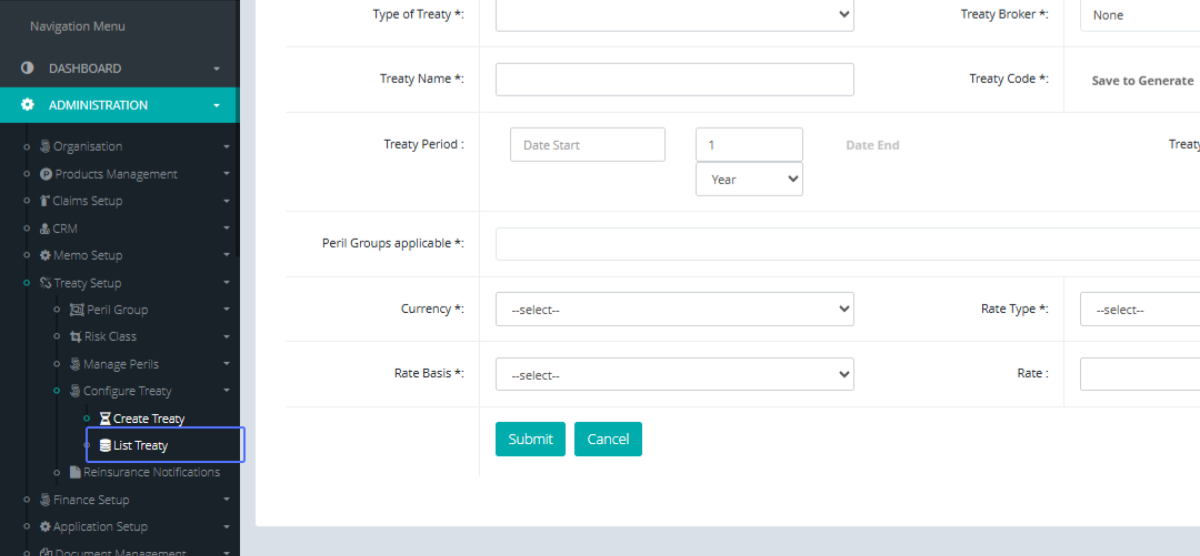
Tab Name: List Treaty - GENOVA INSURANCE
You will be navigated to the List Treaty page, where you can see the Treaty List within the system.
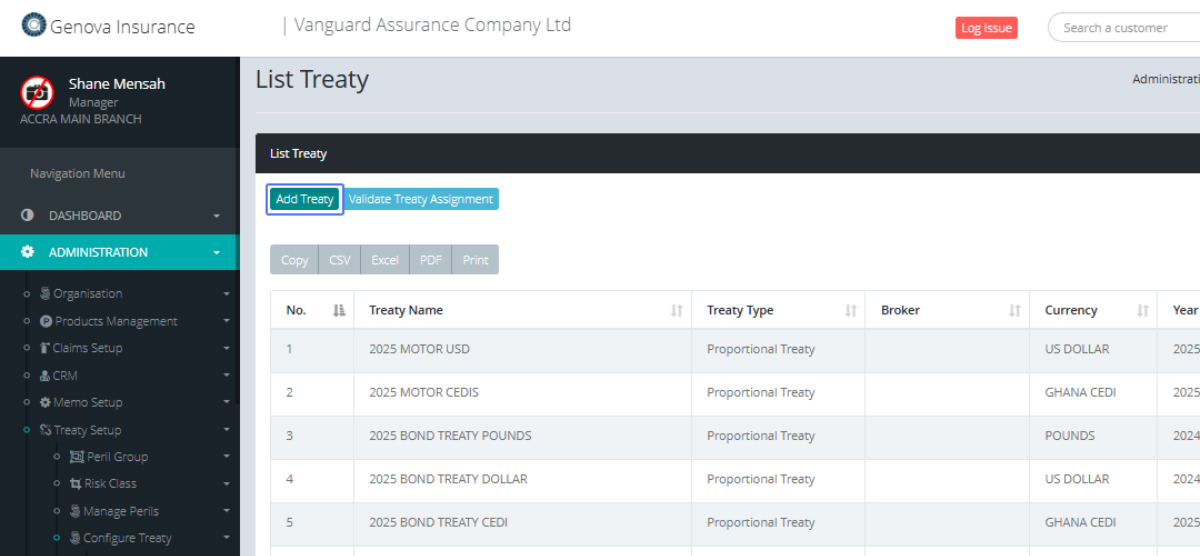
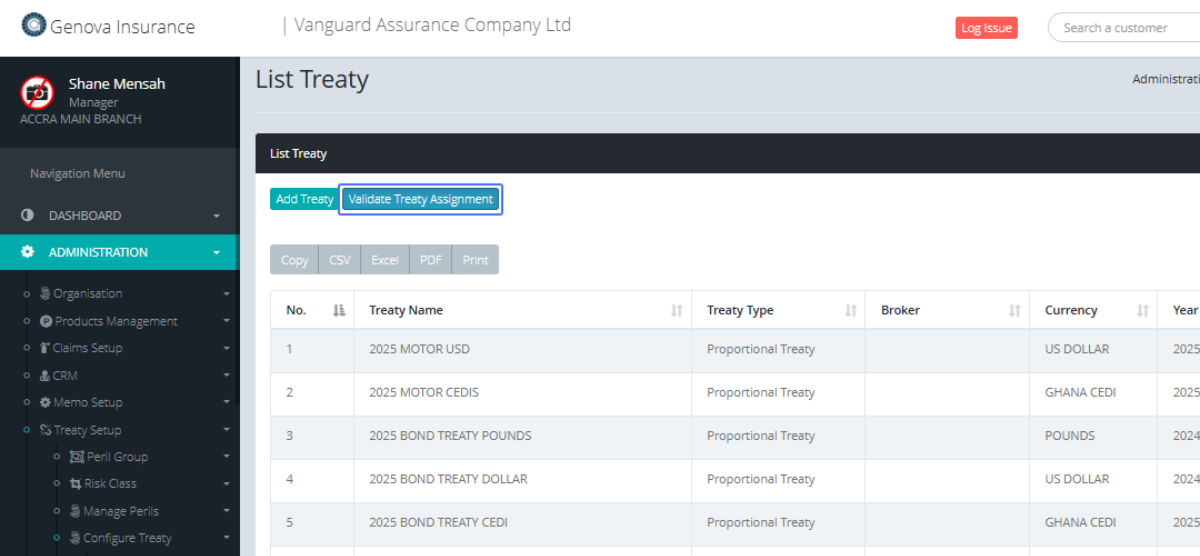
Click on the button "Validate Treaty Assignment" to open the Validate Treaty Modal
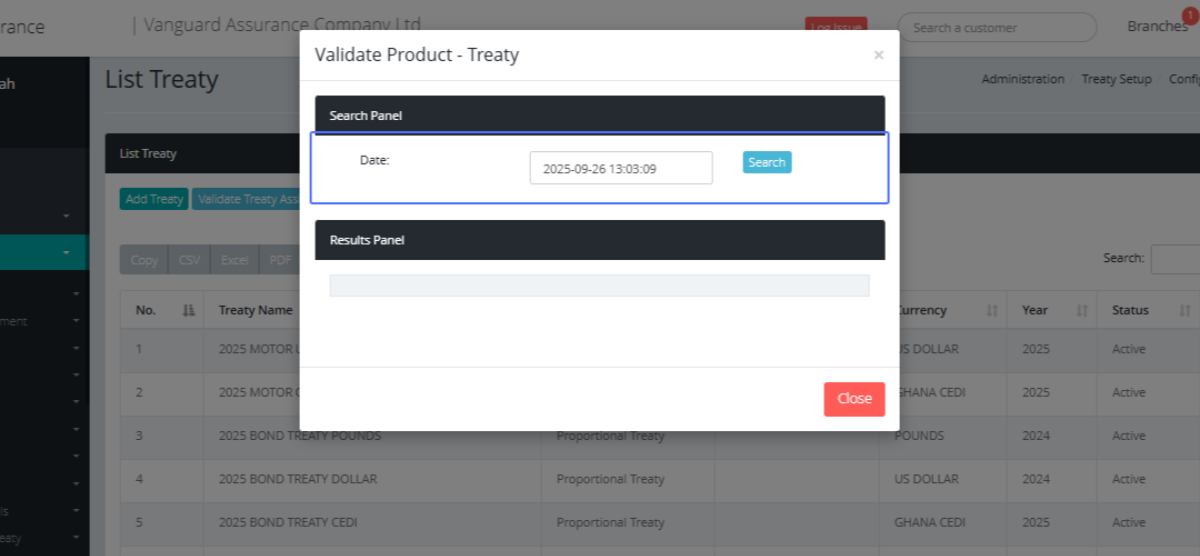
Within the modal, click on "Date: Search" to select the date from the Calendar modal.
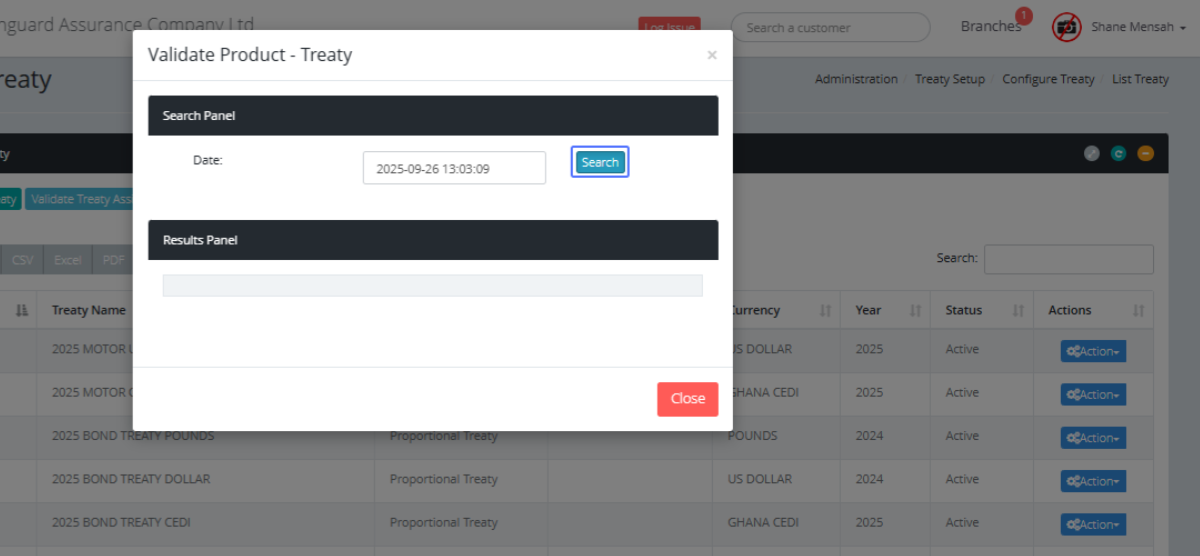
Click on the button "Search" to search for the items within the Date period.
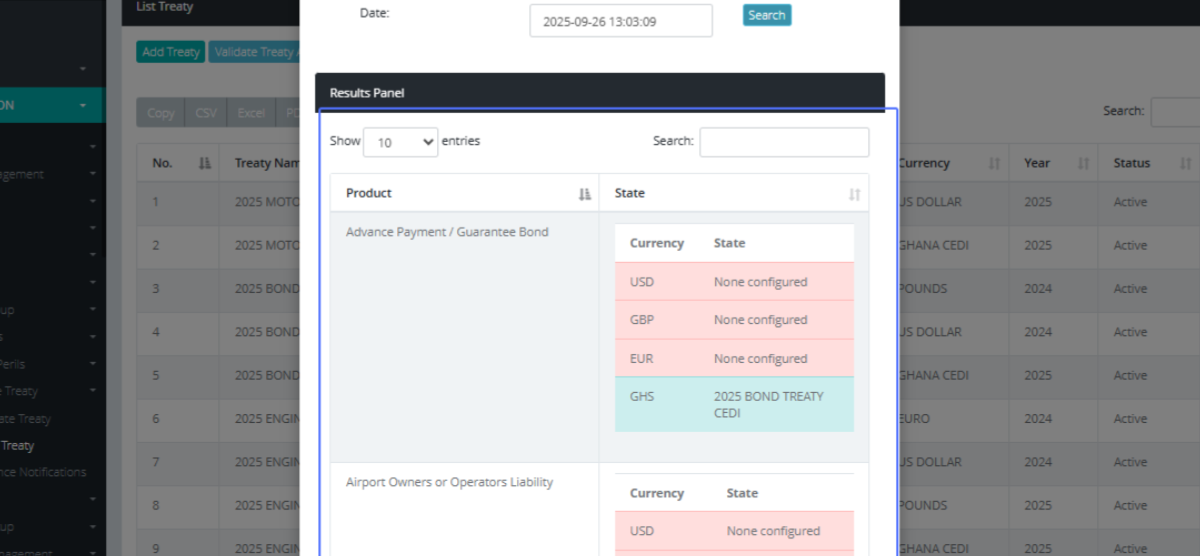
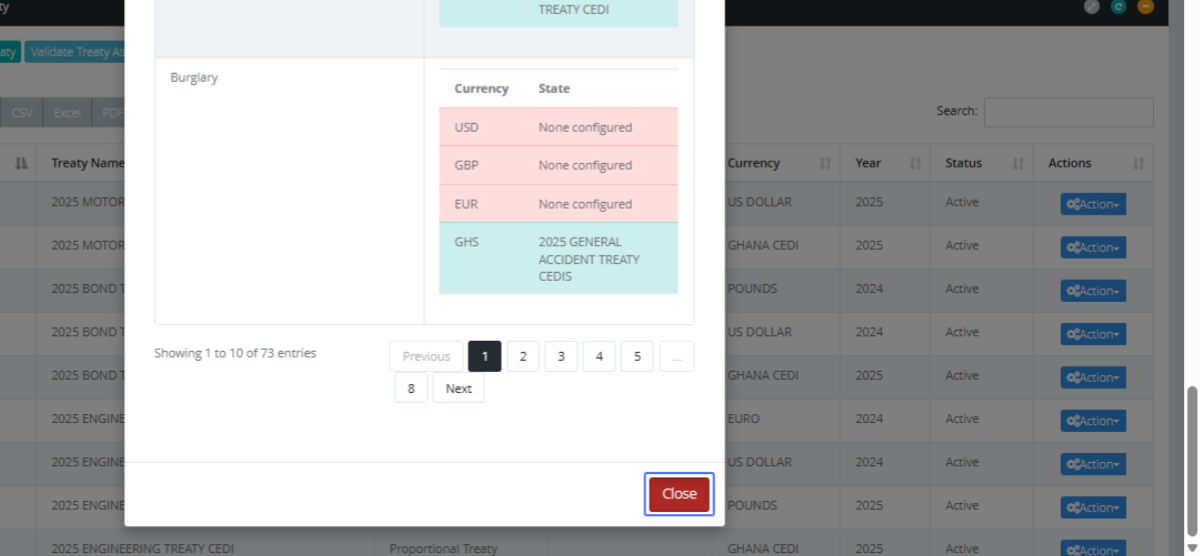
The results panel, will show you the products with their configured state.
Click on the link "Close" to Close the modal.
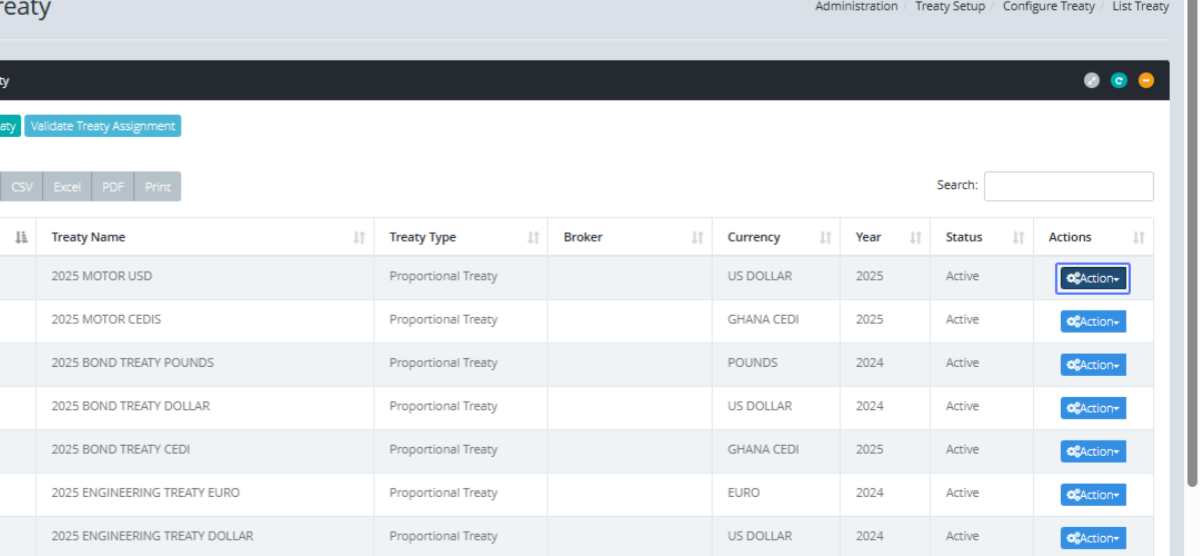
On the List treaties Page, Click on the button "Action" to see the available actions
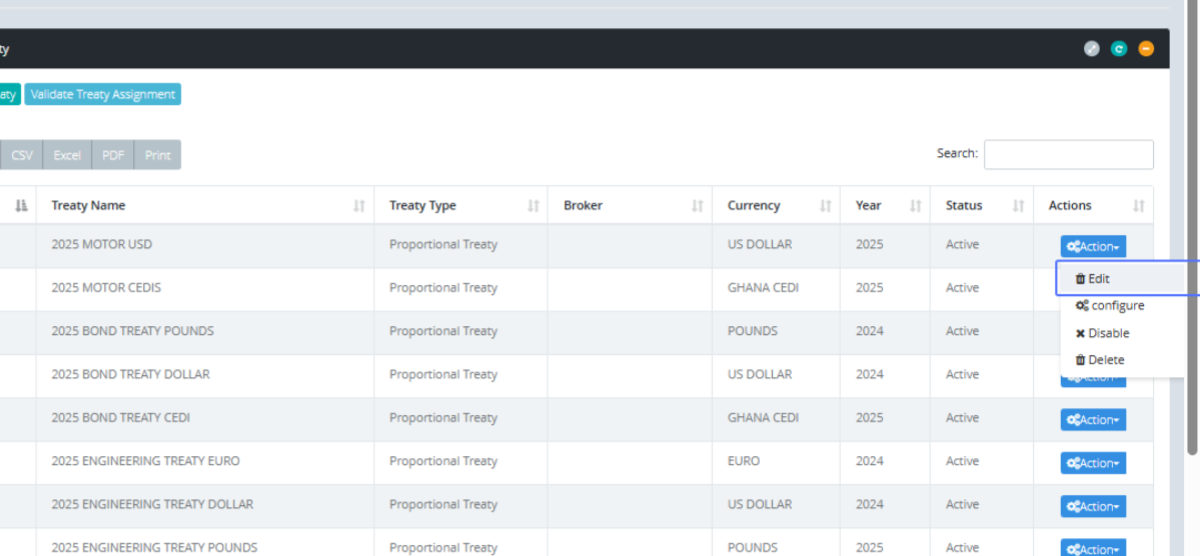
Click on the link "Edit" to get navigated to the Edit form
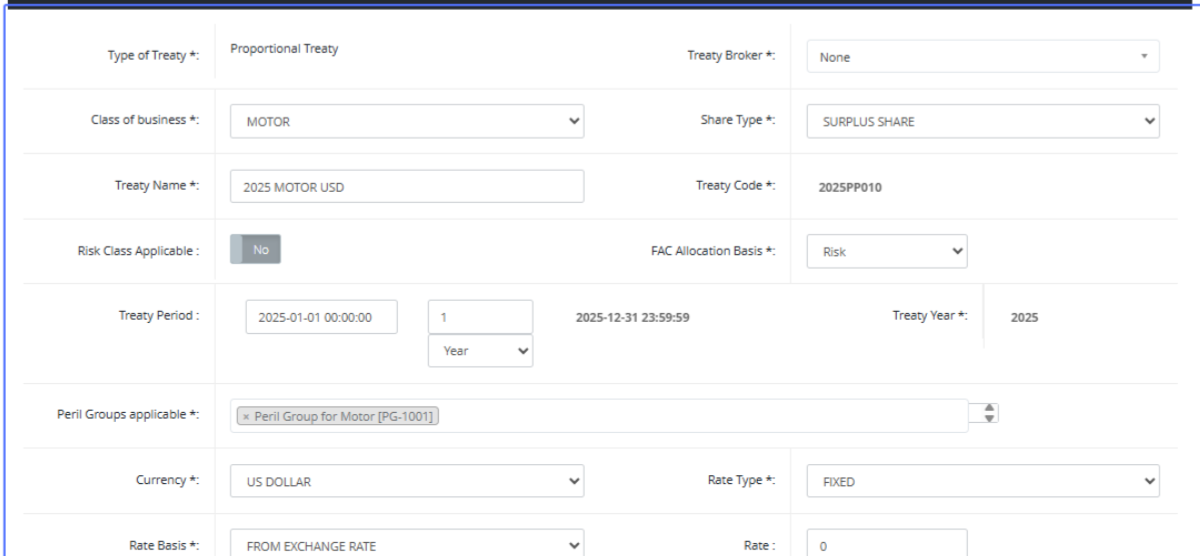
Tab Name: Create Treaty - GENOVA INSURANCE
You will be shown a preview of the Treaty from details that can be configured to the specific treaty.
Click on the "TREATY SETTINGS" Tab to access the treaty settings for that particular treaty.
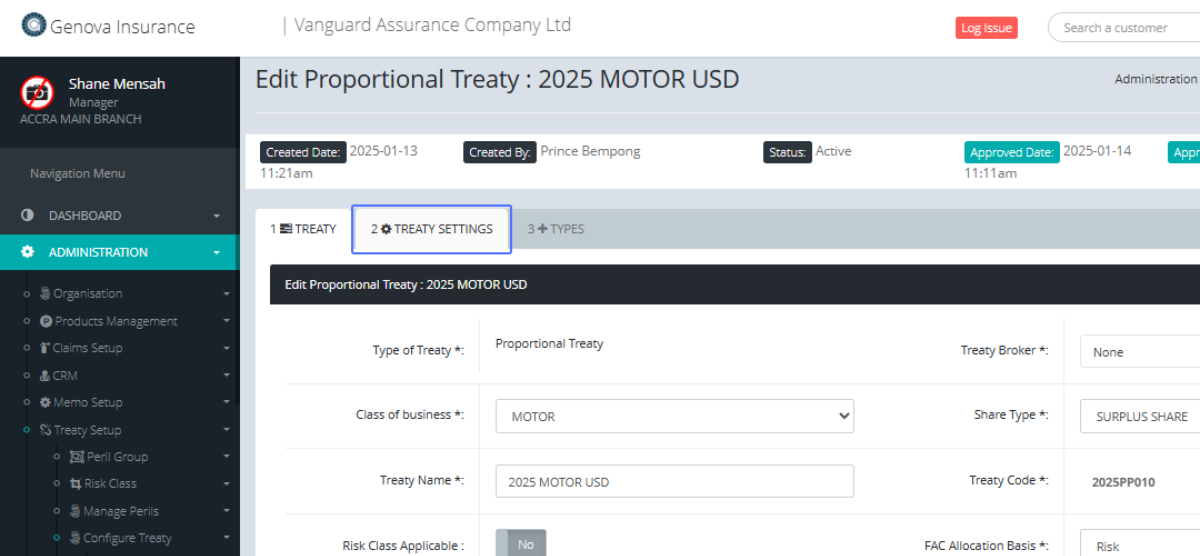
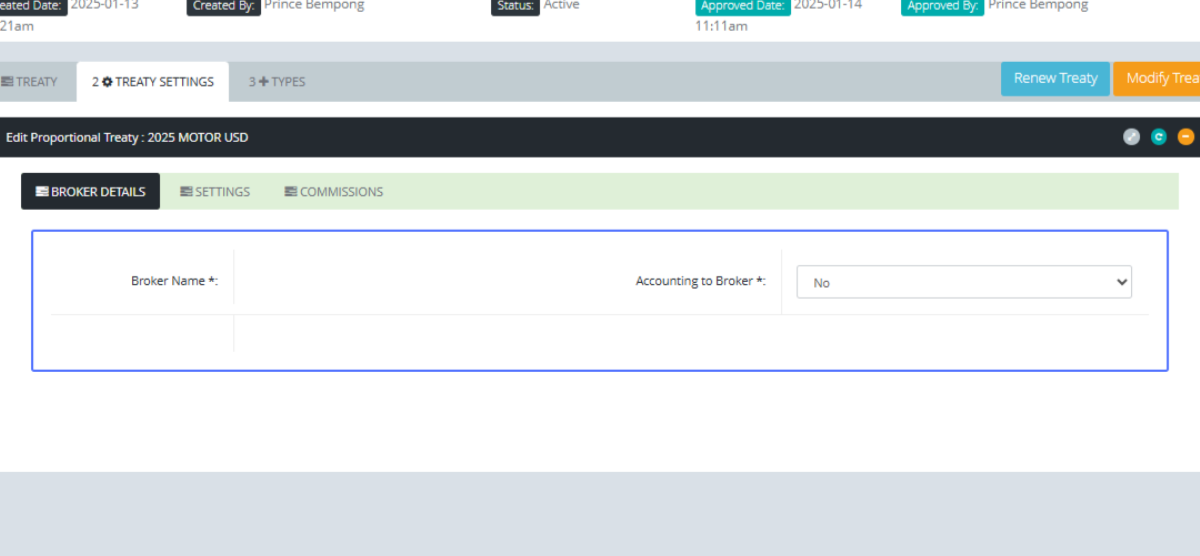
On the Treaty Settings tab, You can view the Broker name and set the Accounting to Broker setting to (Yes/No)
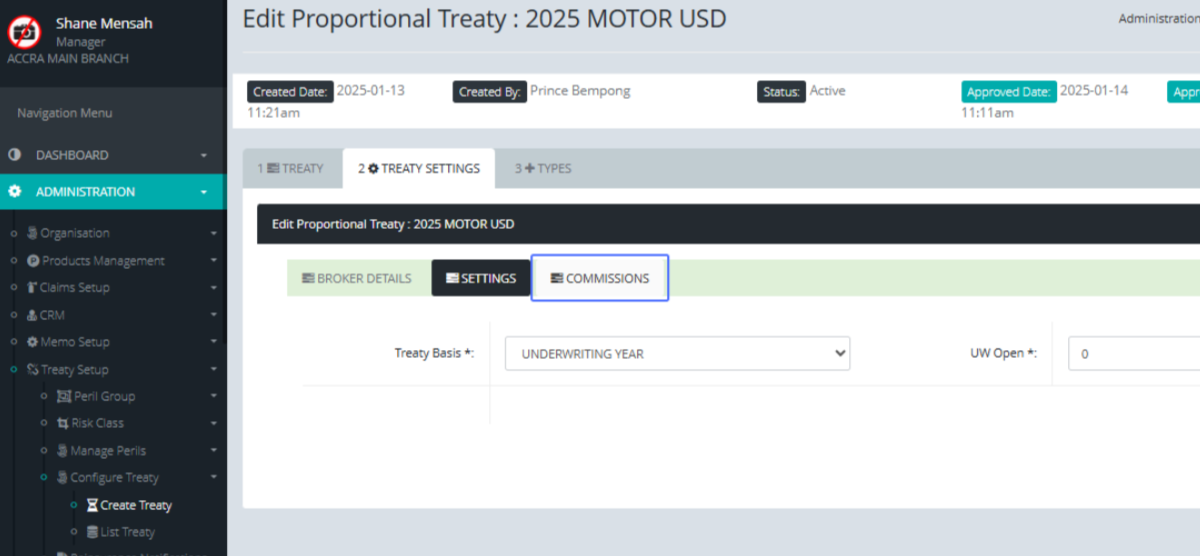
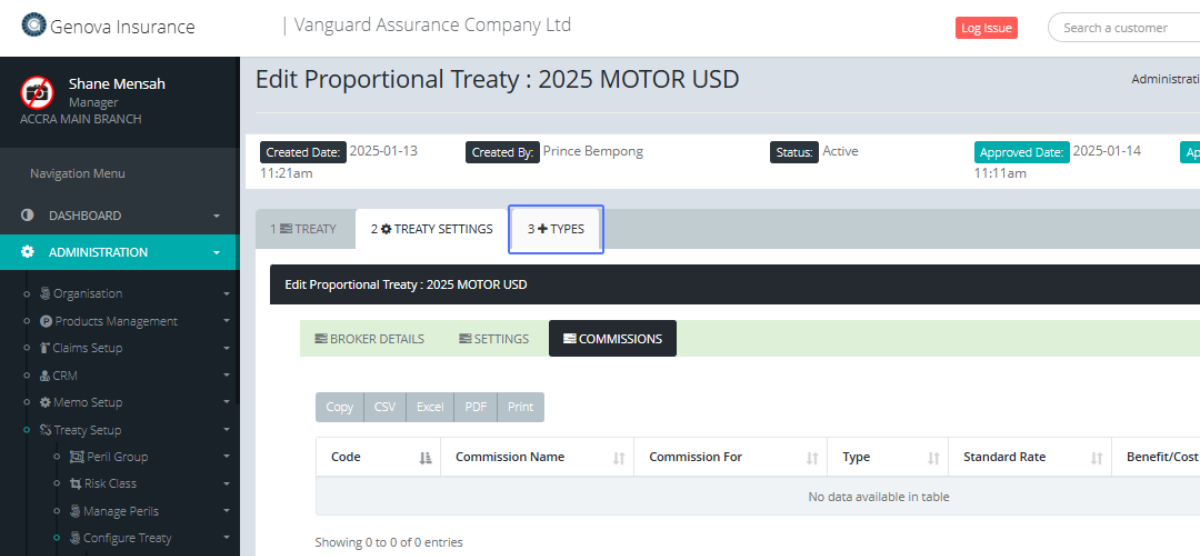
Click on the "COMMISSIONS" subtab to view the commissions on the Treaty
You will then be shown the Commission list for that specific treaty.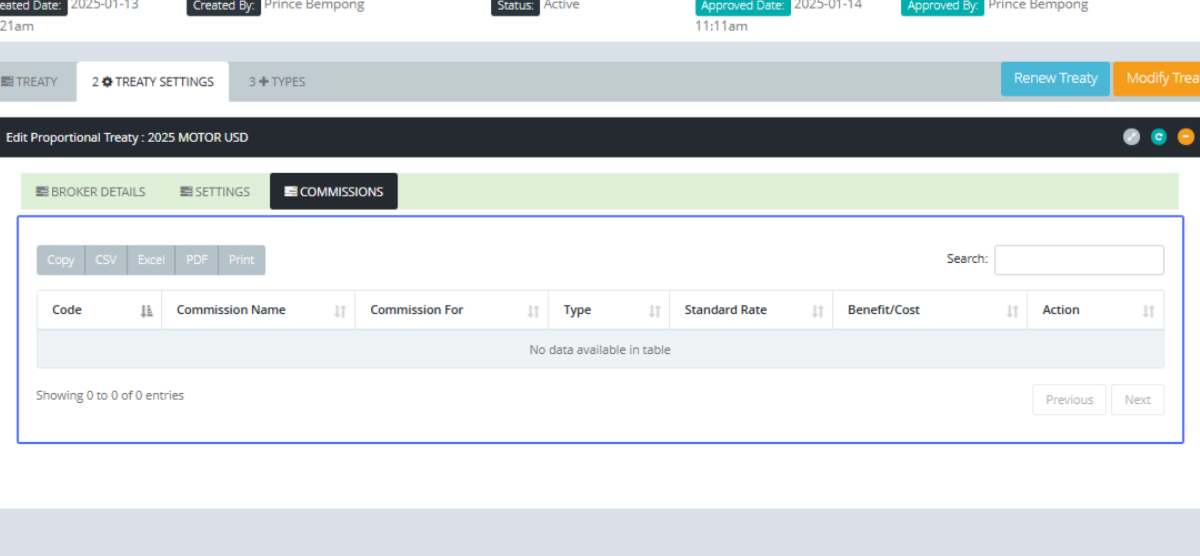
Click on the “TYPES" tab to get access to the Treaty types/layers.
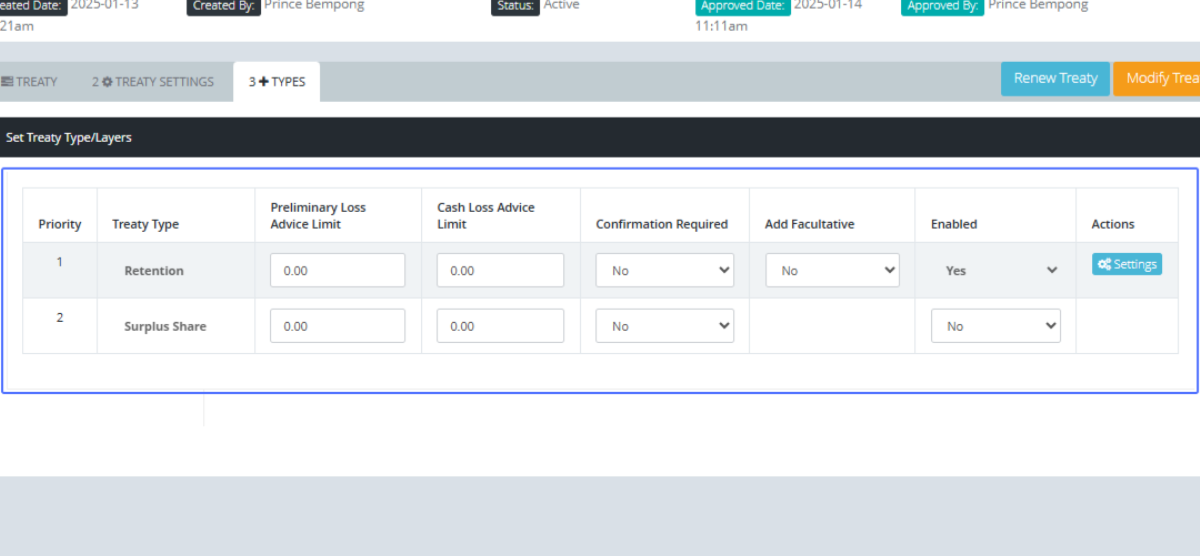
The treaty types would be listed within the Section.
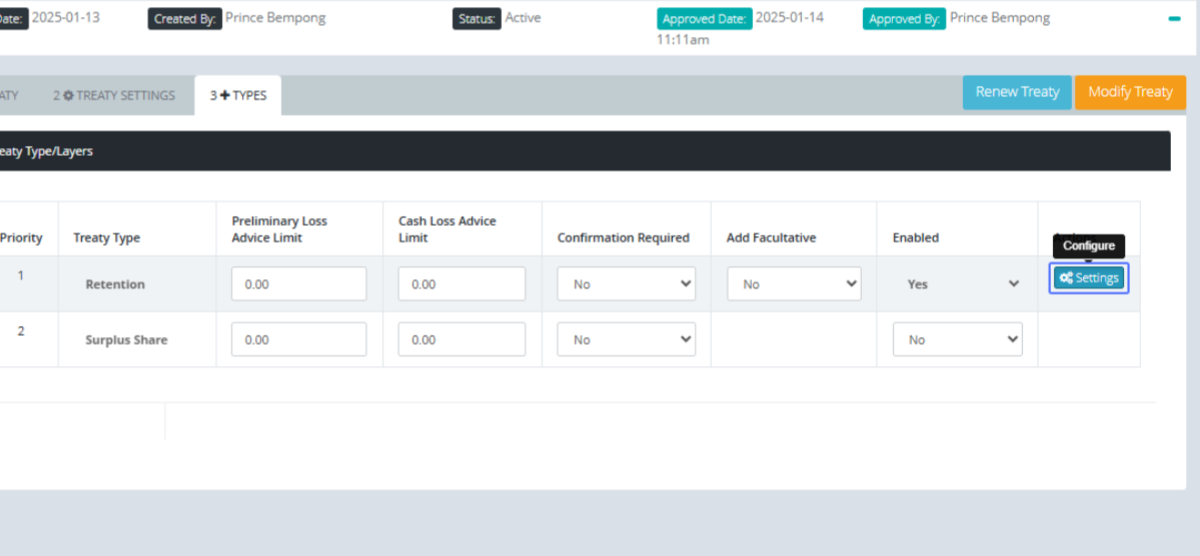
Click on the "Settings" button to Configure the listed treaty type.
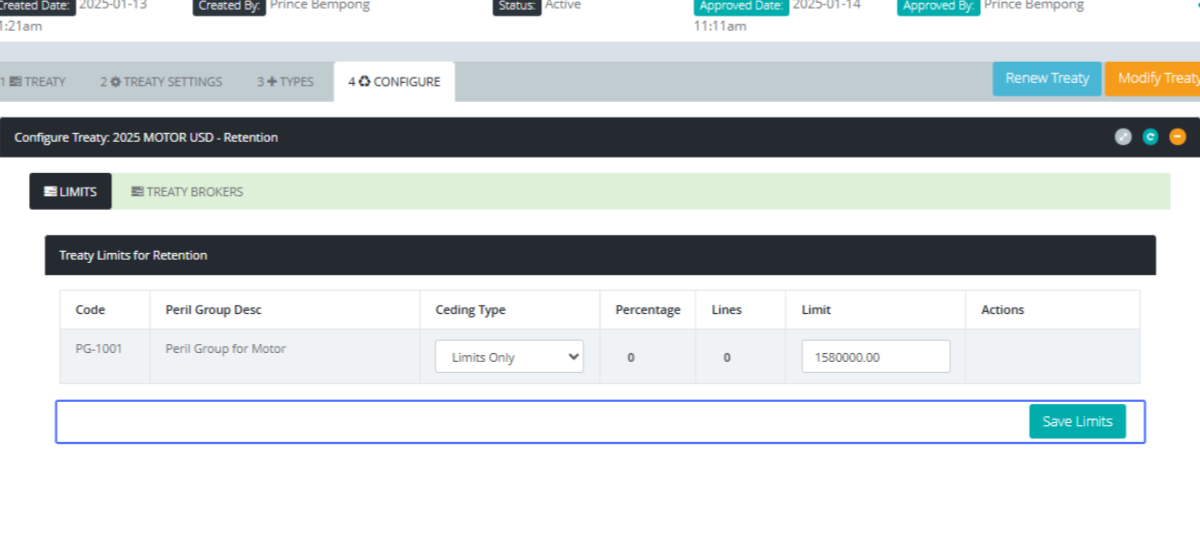
You will then be navigated to the Configure Tab, where you will see the Treaty Limits for Retention.
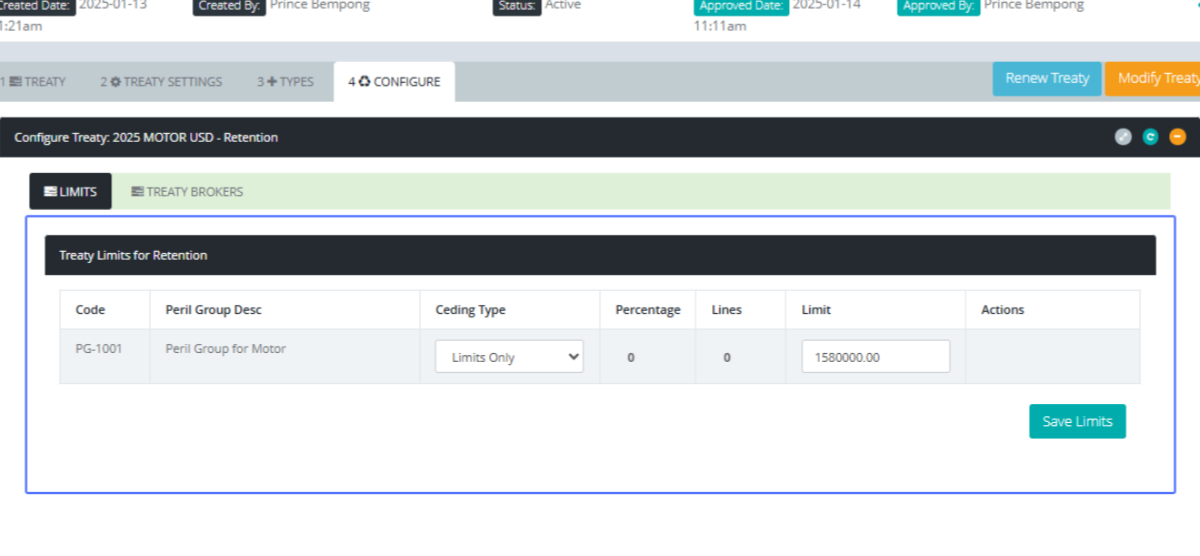
Click the “Save Limits” button to save any changes made to the treaty Limits Section